www.
Apply for membership online
People who want to join your church can find out how on your website, and apply when they are ready. The membership page explains your steps in your own words, and one application covers the whole household: who is joining, how they are joining and the church they are coming from.
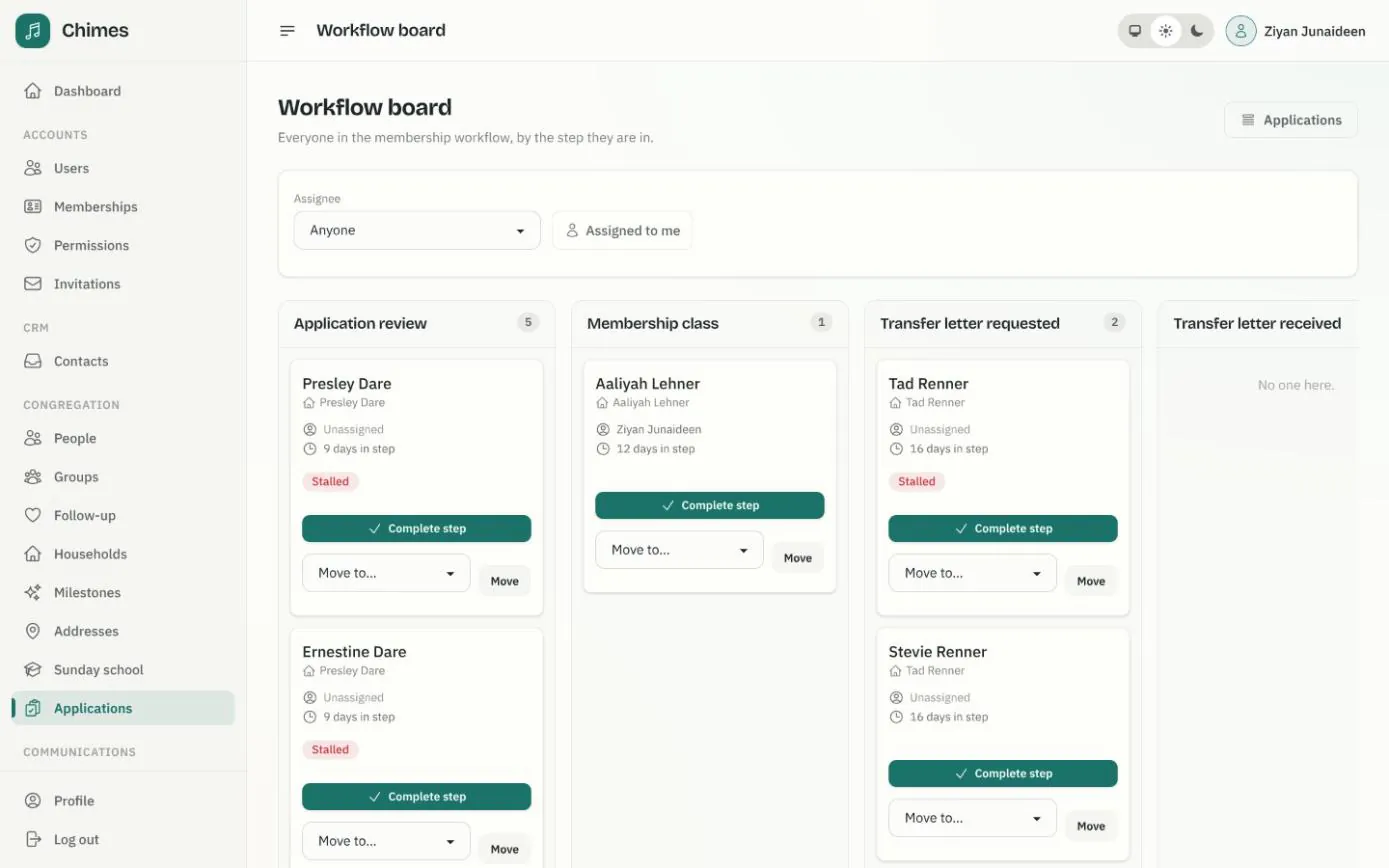
Nothing reaches the office until the applicant confirms their email. Then each person on the application becomes a card on the staff workflow board, ready to be welcomed through the steps.
In short
One form per household
Everyone in the home goes on one application, including children and anyone who is not joining.
Private documents
Transfer letters and certificates are stored outside the public website, and only staff with permission can download them.
Confirmed by email
An application reaches the office only after the applicant opens the emailed link, so nobody chases a mistyped address.
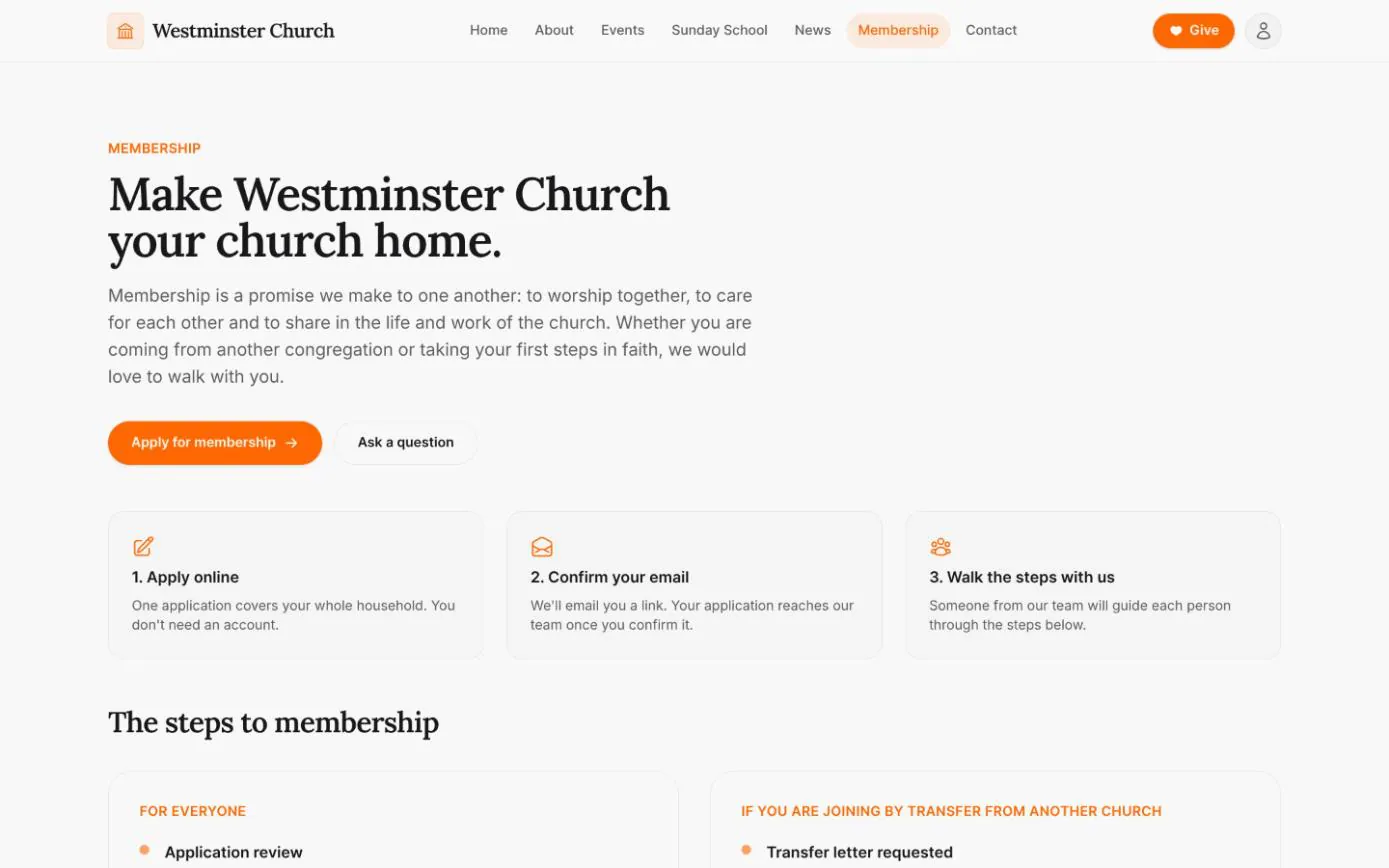
Explain the steps to church membership before anyone applies
Below the Apply for membership button, the page lists your steps with a short public description of each: the ones for everyone first, then those for people joining by transfer, or by baptism or profession of faith.
Someone coming from another congregation sees that you will ask their previous church for a letter. Someone new to faith sees where baptism fits. Both know what to expect before they write a word.
- check Steps grouped by how a person is joining
- check Your own wording, edited in the staff console
- check A link to send the confirmation email again
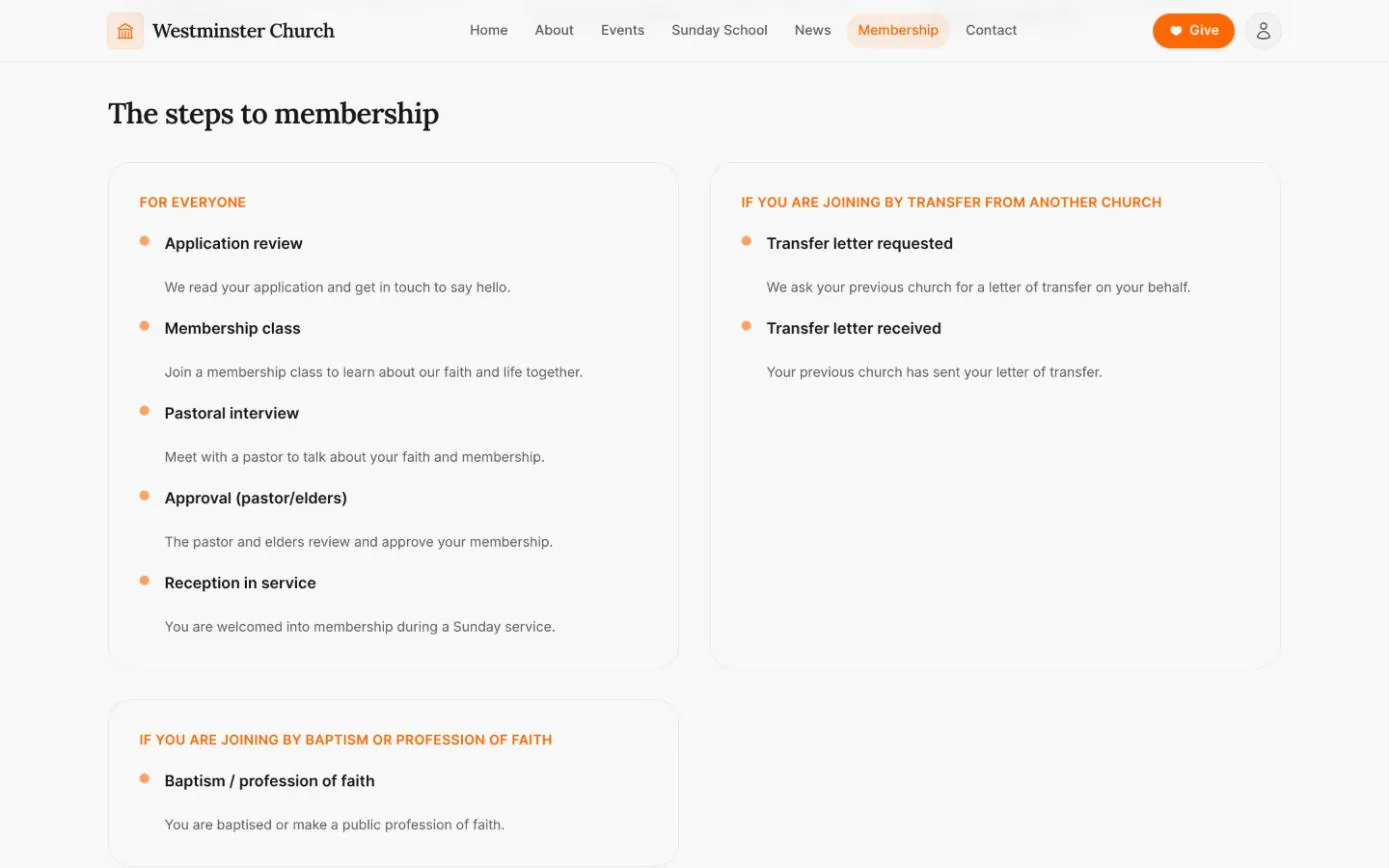
An online membership form for the whole household
The form starts with the household contact and address, then the previous church and its pastor. Each person has a panel of their own: name, title, contact details, date of birth, their relationship to the applicant, whether they are joining as a communicant or baptized member, and whether by transfer, baptism, profession or reaffirmation of faith.
Children and anyone who is not joining can be listed with the household too, so the office sees the whole family in one application.
- check Add another person for each member of the household
- check Baptism date and church of baptism, when they are known
- check No account needed to apply
Transfer letters and certificates, kept private
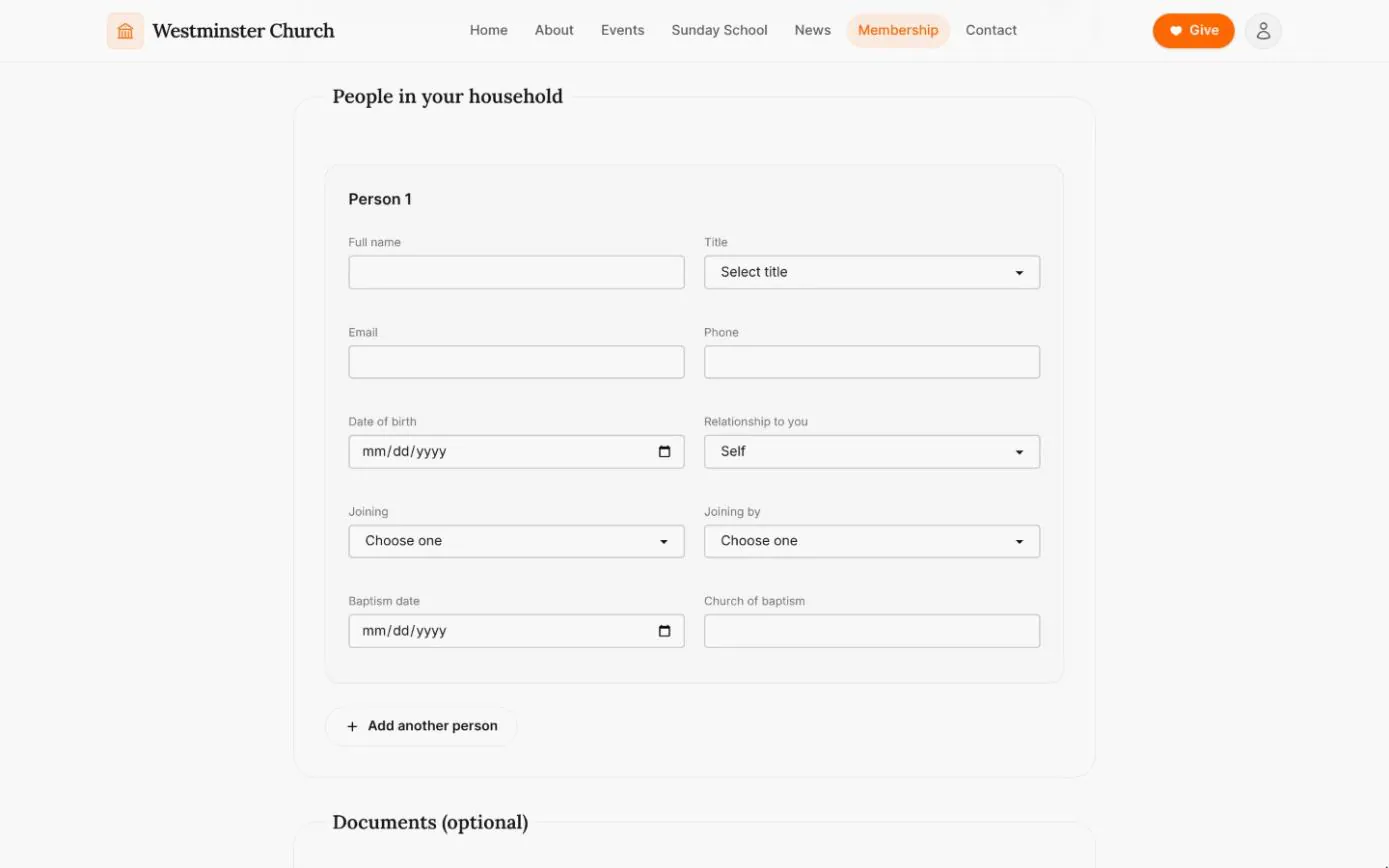
Applicants can attach a transfer letter or a baptism, confirmation or marriage certificate, and mark each one for the whole household or for one person. PDF, JPEG, PNG and HEIC files are accepted.
Documents are stored outside the public website and held in quarantine until the email is confirmed. Only staff allowed to read applications can download them, and the office can purge them once an application is finished.
- check Up to 5 files, 10 MB each and 25 MB in total
- check File types checked from their contents, not their names
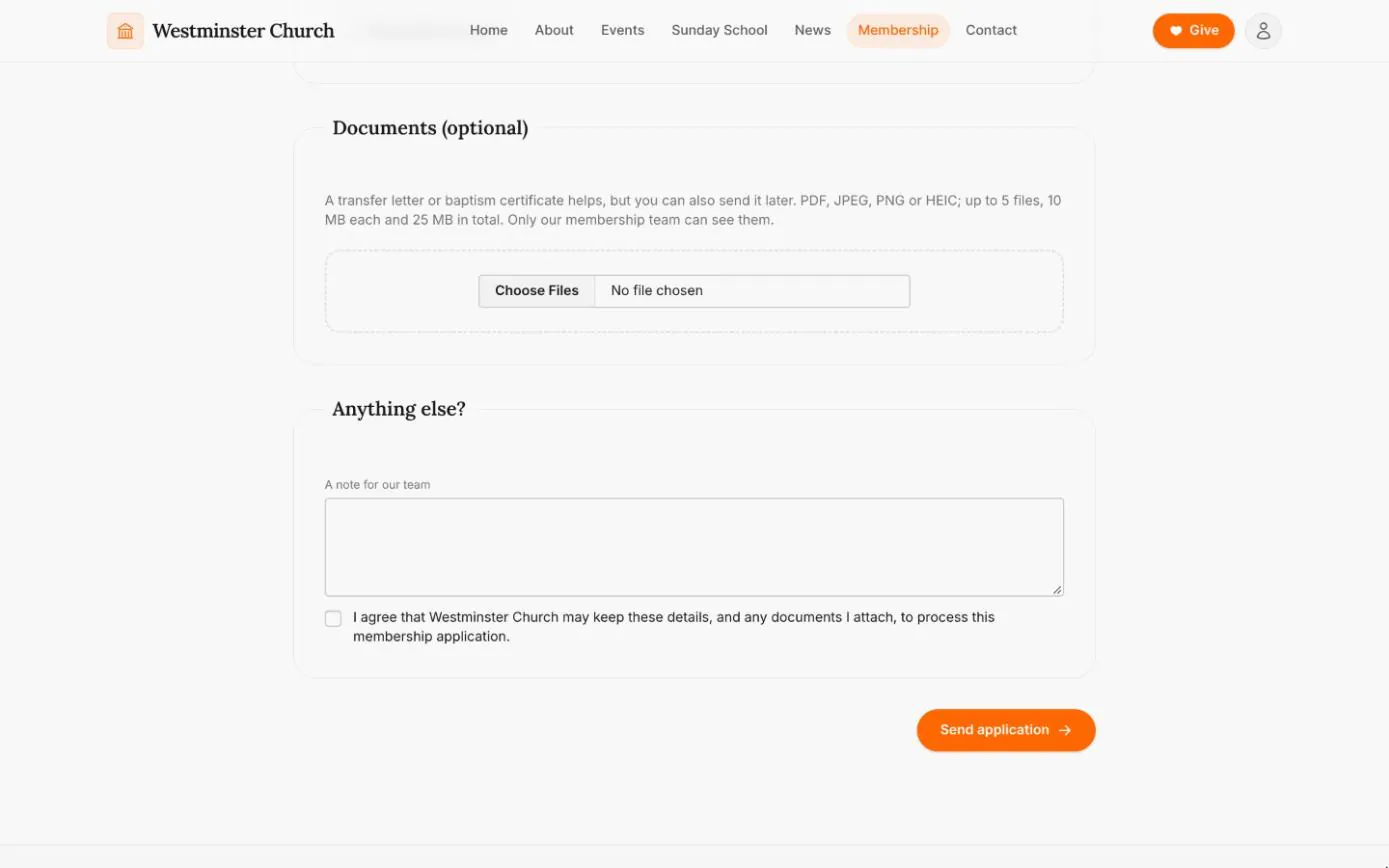
- check A consent checkbox for keeping the details and documents
From the website to the membership roll
An application takes one sitting, and the applicant hears from you at each turn: a link to confirm, an acknowledgement once it is confirmed and a welcome when they are approved.
Applications that are never confirmed are deleted after 14 days, so unverified details do not linger.
-
01
Fill in the form
The household, the previous church, each person and any documents. No account is needed.
-
02
Confirm the email
Chimes emails a link that lasts seven days, and a new one can be requested. The application reaches the office only once it is confirmed.
-
03
The office is told
The staff who look after the first step are notified, and the applicant receives an acknowledgement.
-
04
Each person walks the steps
Everyone joining becomes a card on the workflow board and moves through the steps that apply to them.
-
05
Approved and welcomed
Approval adds the person to the directory as a member, with their household and a membership milestone, invites adults to create an account and sends a welcome.
Staff set the steps the website shows
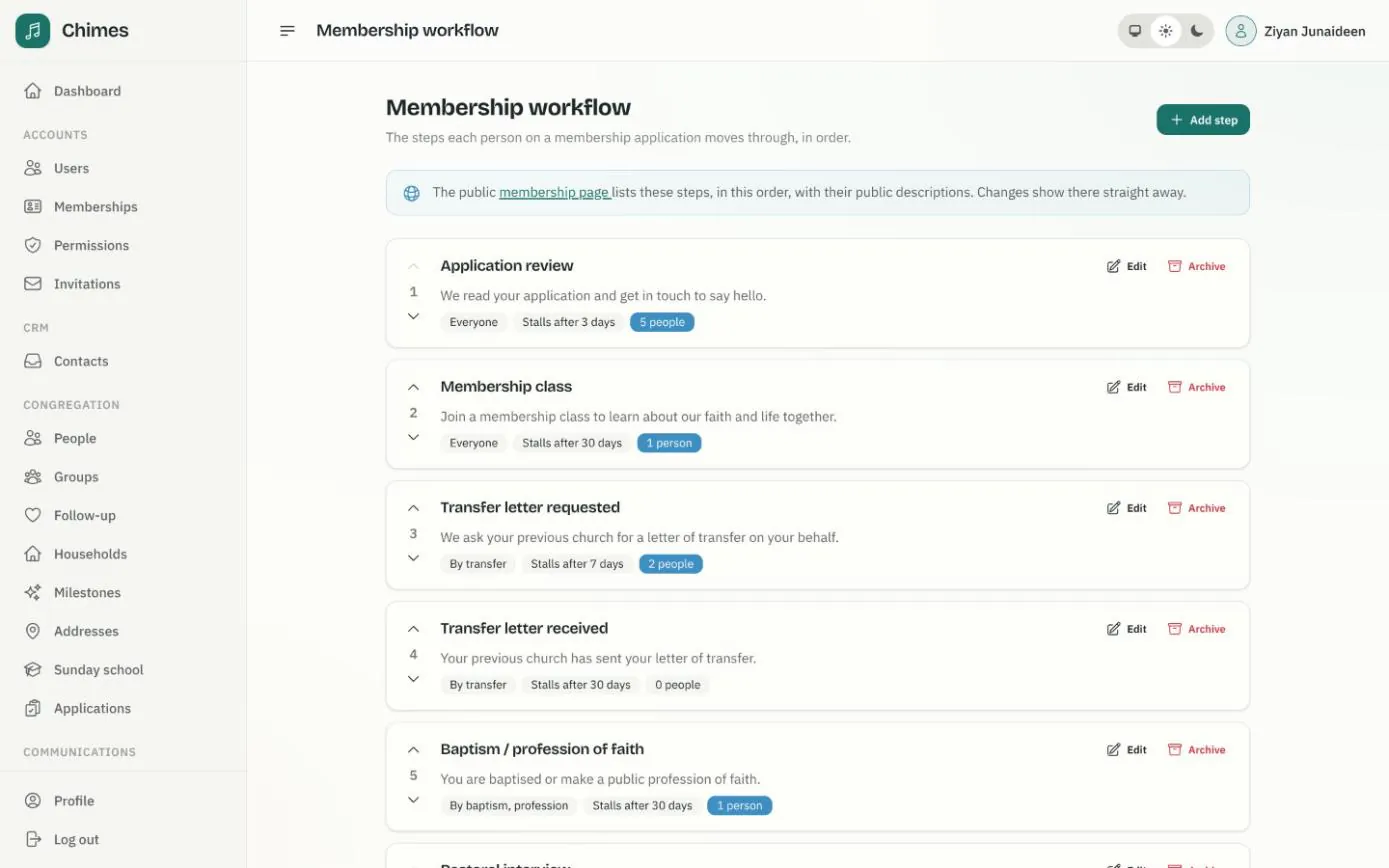
The steps on the public page are the church's membership workflow. In the staff console an admin names each step, writes its public description and private staff instructions, chooses who it applies to and puts the steps in order. Changes show on the website straight away.
The same steps drive the board where staff move each applicant along, with a default assignee and a reminder when someone has waited too long.
- check Steps for everyone, or only for some ways of joining
- check A stall threshold and a default assignee for each step
- check Steps that cannot be completed until a person is approved
Related features
Membership workflow
Applications on a board, a card per person moving through the steps you define, with assignees, stall reminders and approval that creates or links the member.
See the feature arrow_forward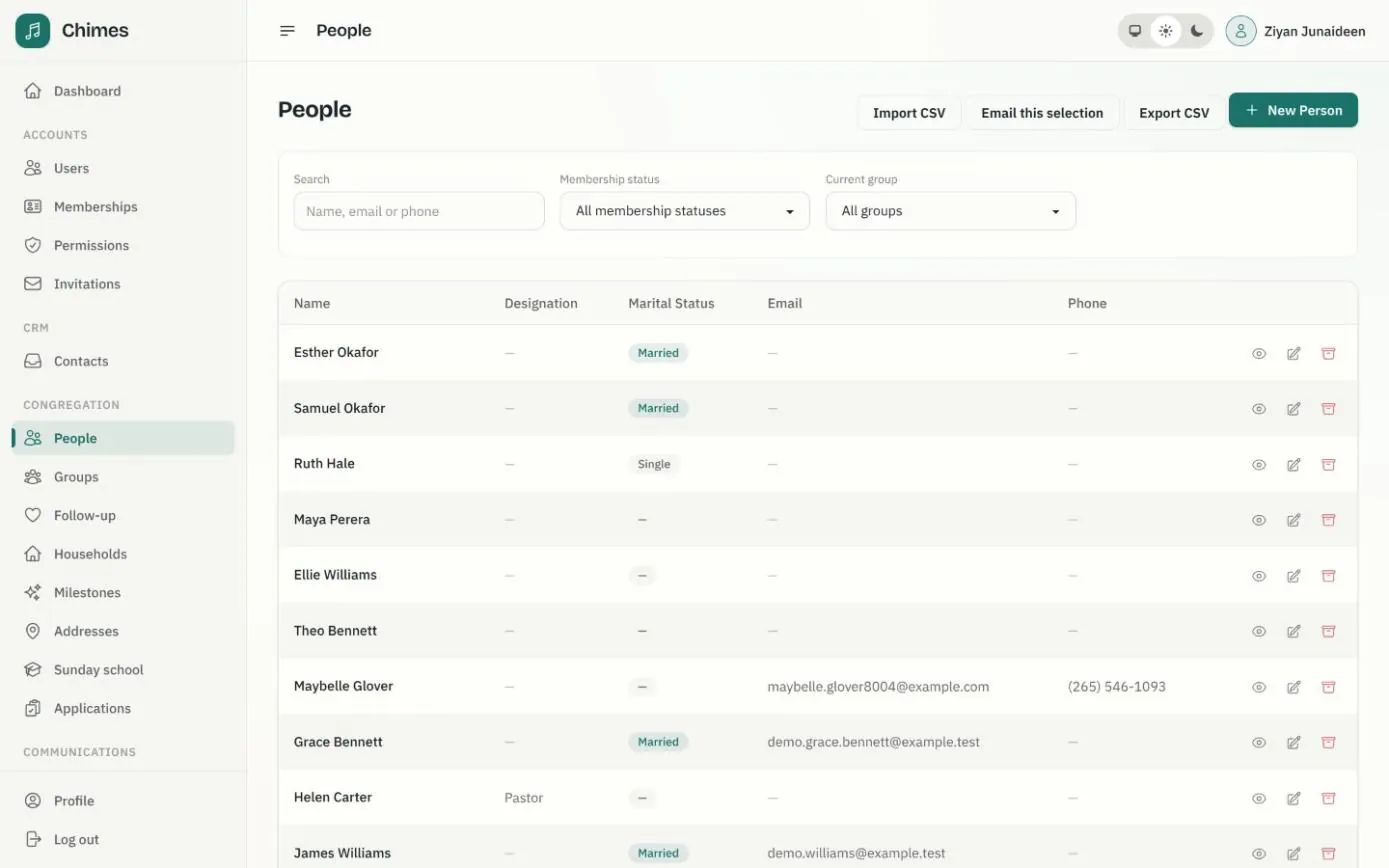
People and households
A directory of people and households with family relationships, milestones, ministry groups, membership status, and CSV import and export.
See the feature arrow_forward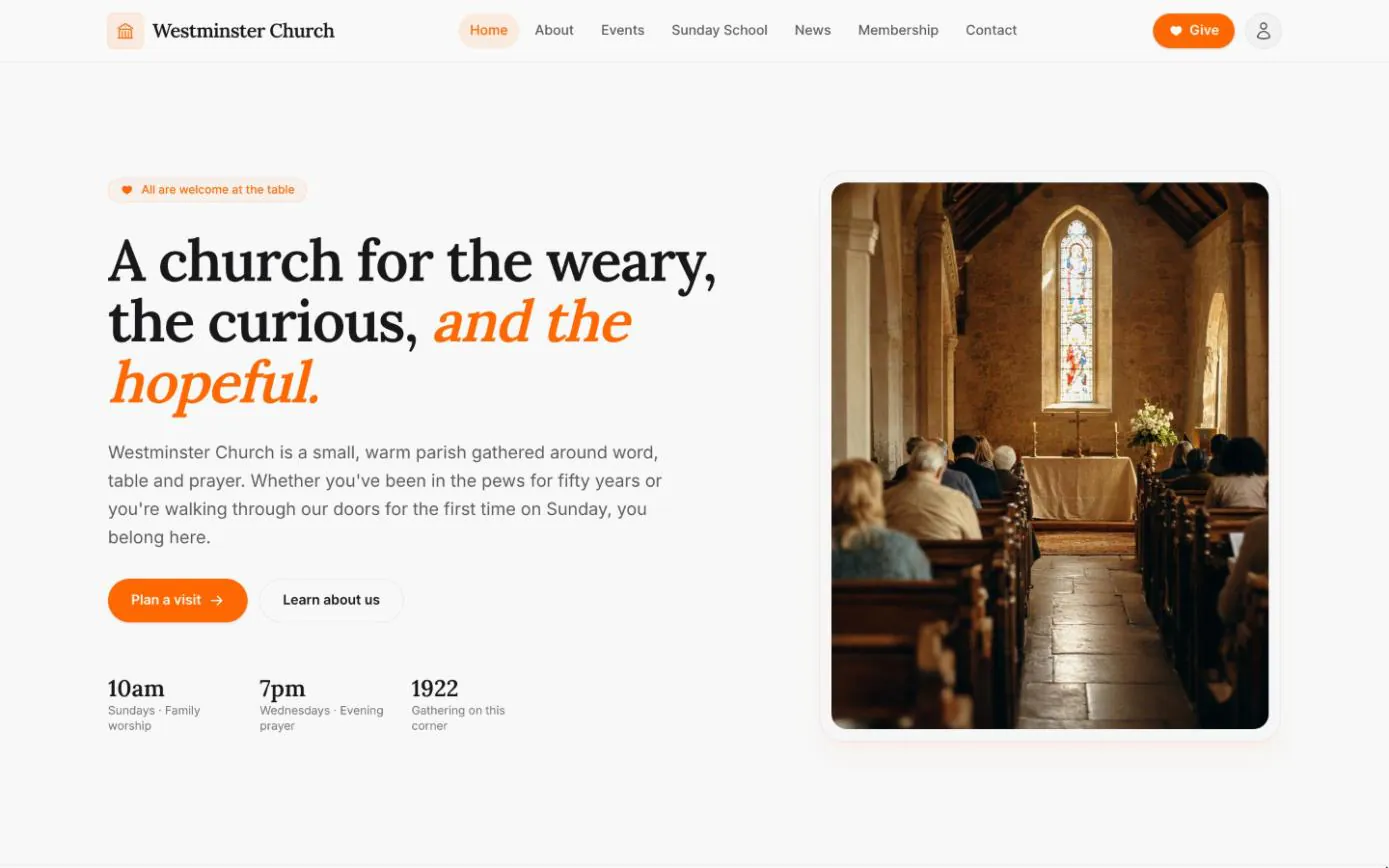
Your church website
Home, about, events, Sunday school, news and contact pages come with every deployment, filled from the settings, calendar and news kept in the staff console.
See the feature arrow_forwardSee Chimes with your own congregation in mind.
Tell me how your church keeps its records today and where you would like Chimes hosted. I will come back with a deployment plan and a straight answer on what it will take.