admin.
Membership workflow
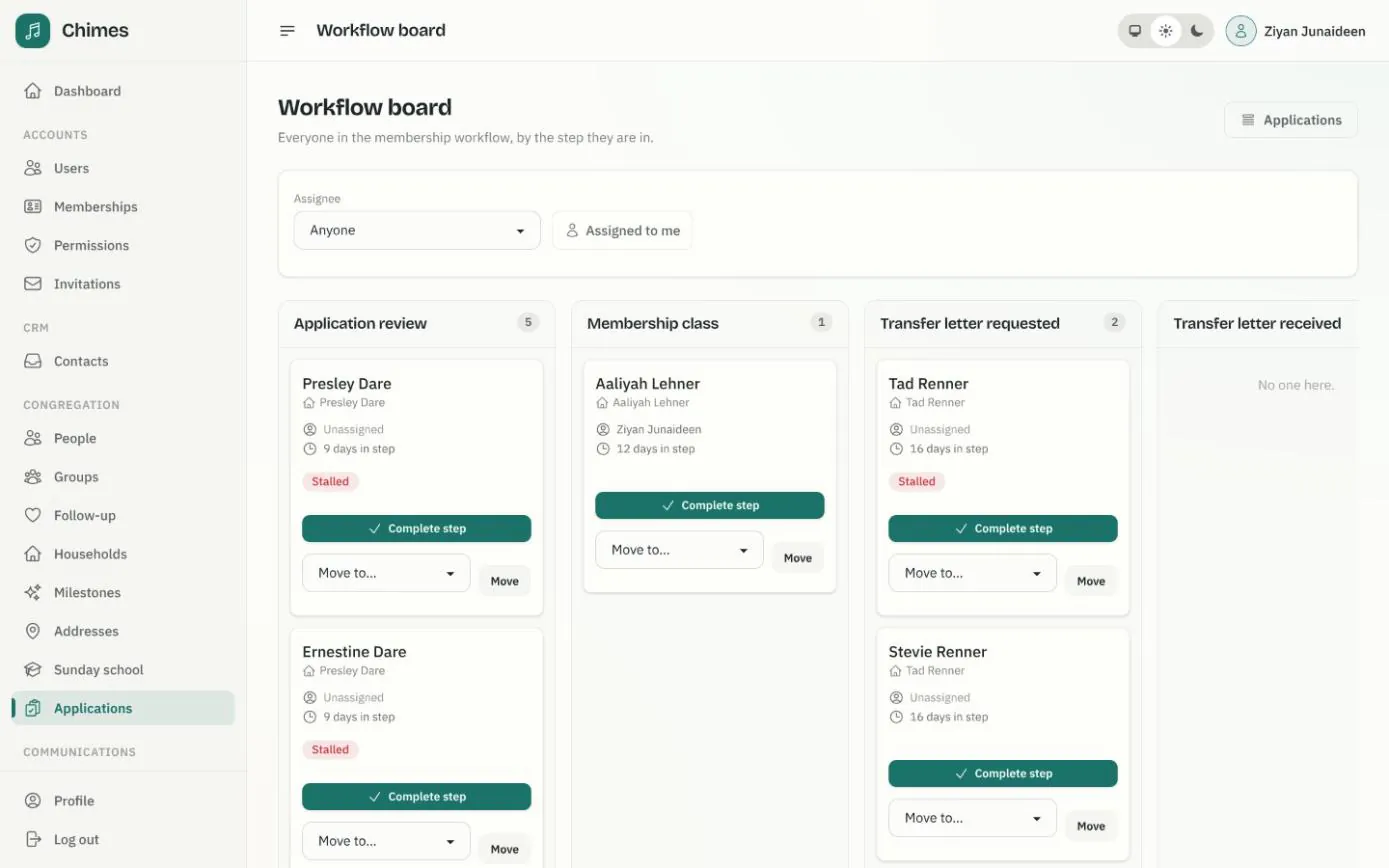
When a household applies for membership on your website, each person on the application becomes a card in the church office's workflow. Staff move every card through the steps your church follows, from the first welcome to reception in a service, and everyone can see who is waiting on whom.
Nothing reaches staff until the applicant has confirmed their email. When someone is approved, Chimes creates or links their person record, adds them to a household and invites the adults to the member app.
In short
Your steps, in your order
Set the steps your church follows, who each one applies to and which need the pastor's or elders' approval.
Nobody left waiting
People who sit too long in a step are flagged, and their assignees get a daily digest by email.
Approval does the paperwork
Approving a person sets their membership, adds a Membership milestone and places them in a household.
Every membership application and where it stands
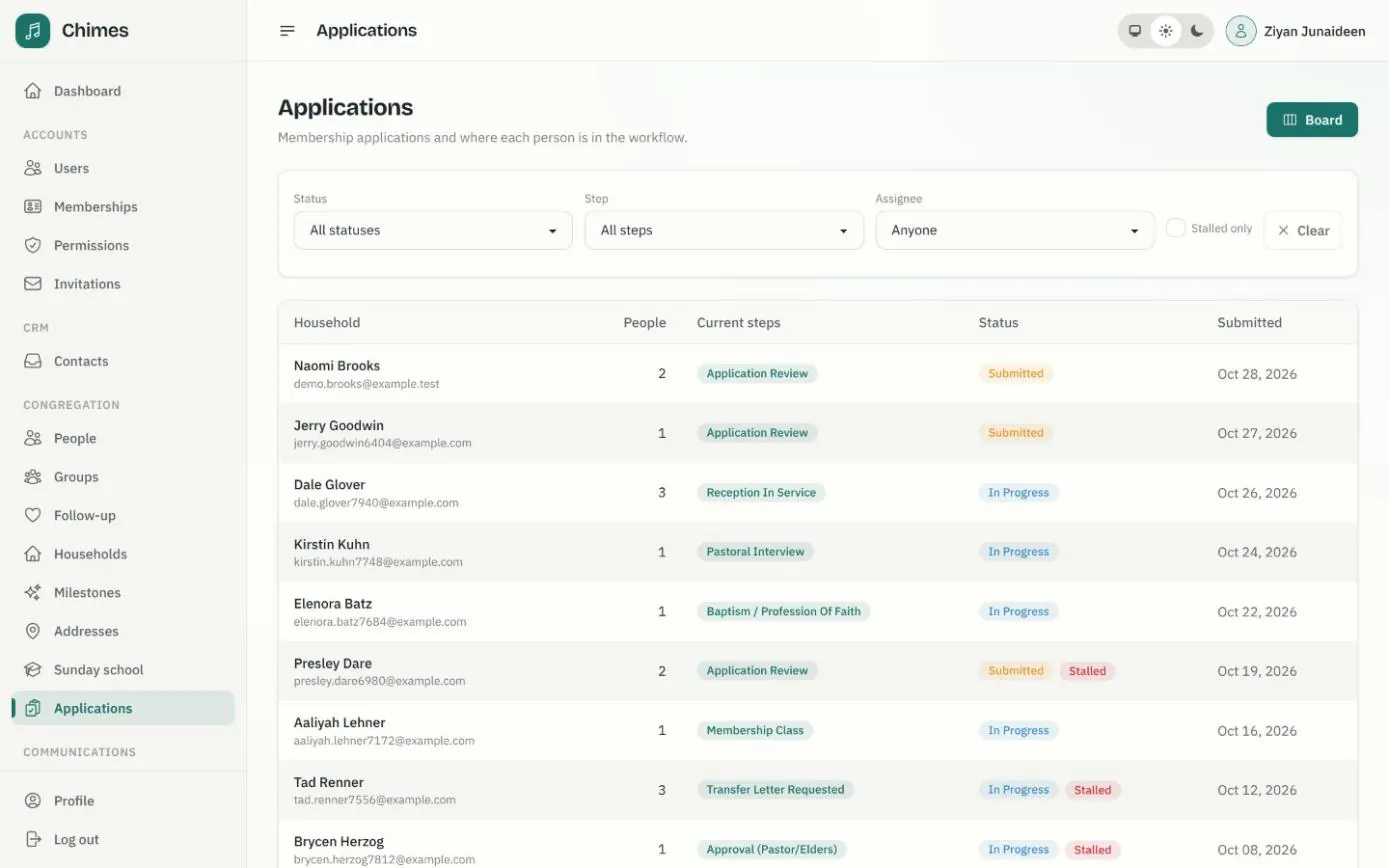
The applications list shows each confirmed application, newest first, with the number of people on it, the steps they are in and its status. Filter by status, step or assignee, or show only the applications that have stalled.
Applications whose email was never confirmed stay out of the list, and are removed automatically after two weeks together with anything uploaded with them.
- check Submitted, in progress and completed at a glance
- check A stalled-only filter for the people who need attention
- check A board of the same people, one column per step
One page for a household's application
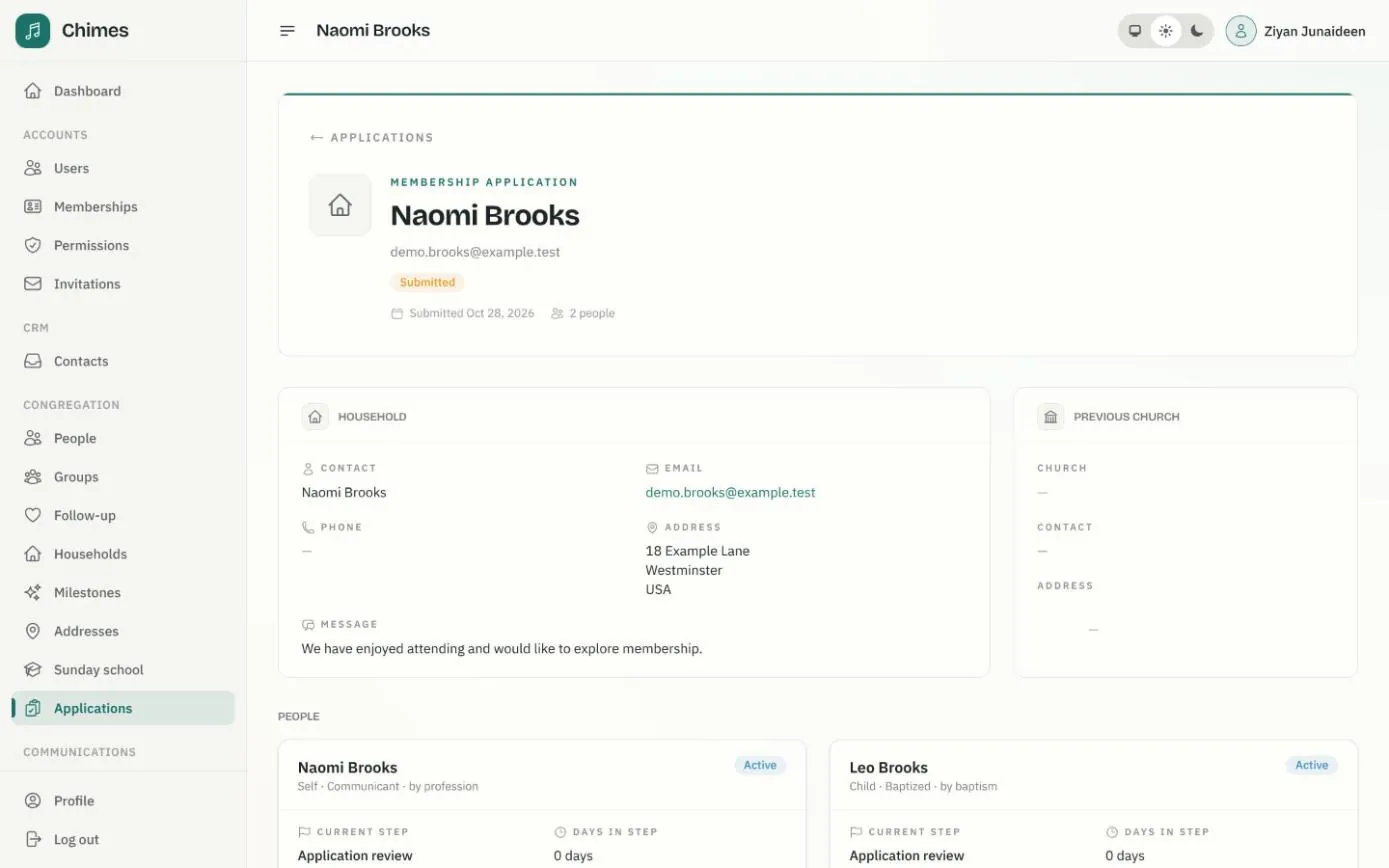
The application page holds the household's contact details, address, message and previous church, then a card for each person with how they are joining and the step they are in. Staff complete a step, move, assign or snooze a card, withdraw it or mark someone as not joining, right from the card.
Notes and private documents, such as transfer letters or baptism certificates, sit beside a timeline of every step taken. Documents are kept outside the public website, and only staff can download them.
- check Staff notes on the whole application or on one person
- check Approve or decline each person, with an optional email that never gives the reason
- check Purge a finished application's documents once they are no longer needed
How each person moves through the workflow
Each person on an application moves on their own, so a parent transferring from another church and a child being baptised can follow different steps.
Every move is recorded on the application's timeline and in the audit log.
-
01
The applicant confirms
The household applies on your website and confirms by email. Only then do their cards appear, and staff are told a new application has arrived.
-
02
Each card is placed
Everyone joining starts in the first step that applies to them. A person listed as not joining is recorded but kept off the board.
-
03
Staff work the steps
Complete a step to move to the next one that applies, or move a card to any step. Assign it, or snooze it for a few days while you wait on someone.
-
04
Approve or decline
The approver links or creates the person's record, sets their membership date and how they were received, and chooses their household.
-
05
Welcome them in
Chimes emails a welcome and invites adults to create a member app account. The card stays on the board for later steps, such as reception in a service.
Set up your church's membership steps
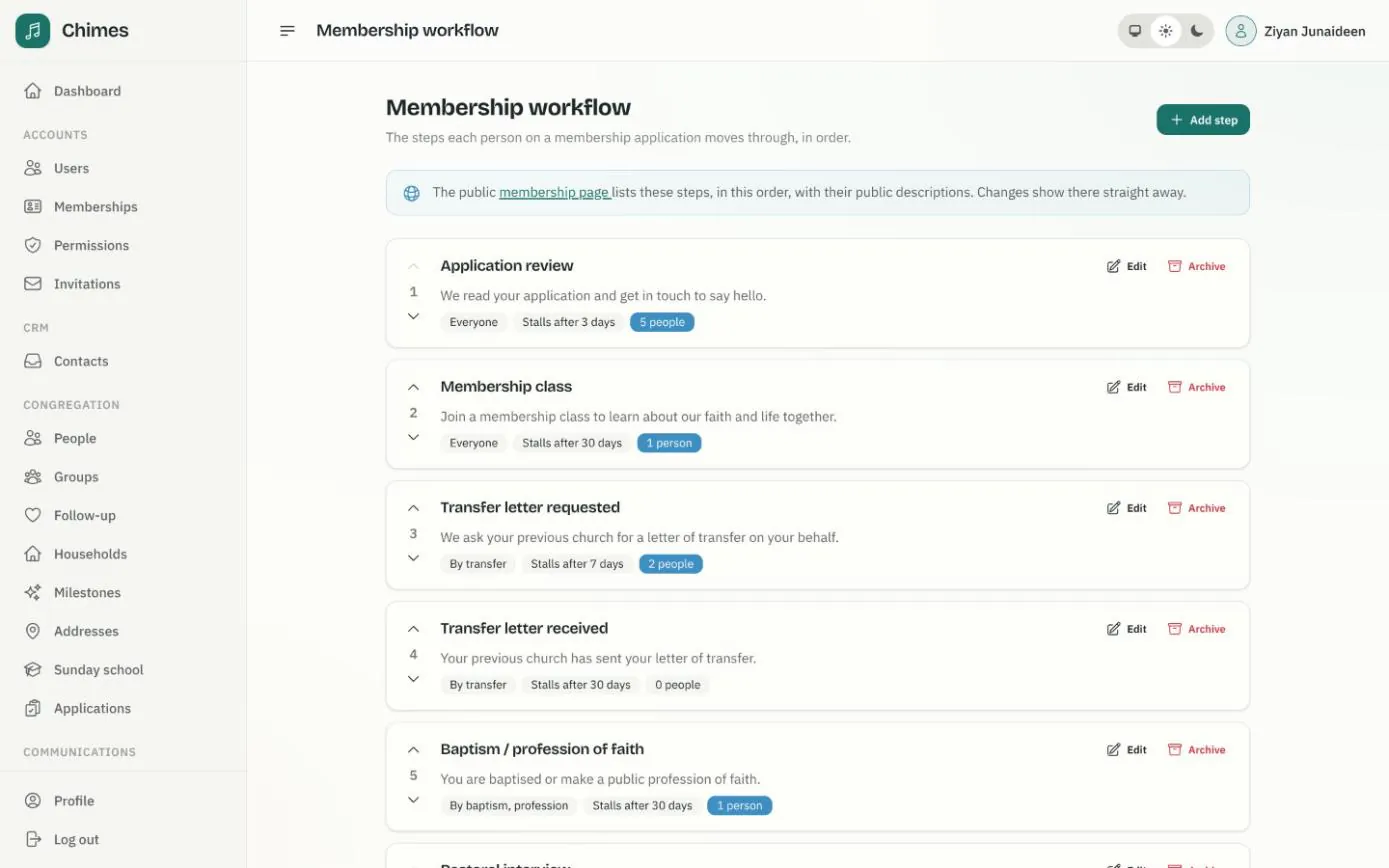
Start from the eight default steps, or write your own. Each step has a public description, shown on the membership page of your website, and private instructions for staff. It can apply to everyone, or only to people received by transfer, baptism, profession or reaffirmation.
Give a step a default assignee and the number of days after which a card counts as stalled. Mark the steps that need approval, such as a decision by the pastor or elders, and put them in order with the arrows.
- check Changes show on the public membership page straight away
- check A count of the people in each step
- check Archiving a step that still has people in it asks where to move them first
Related features
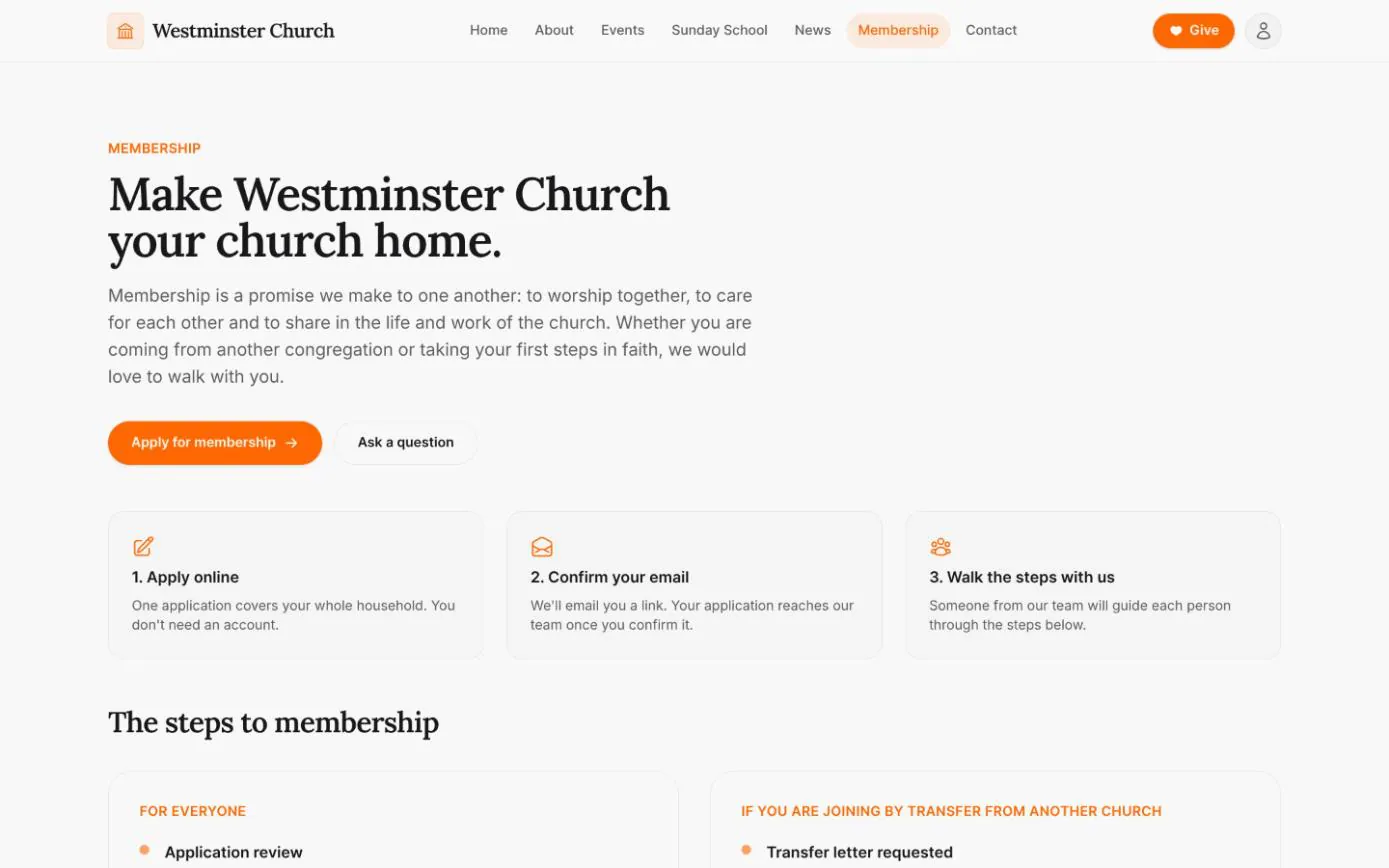
Apply for membership online
A membership page that explains your steps, and one application for the whole household with optional private documents and email confirmation.
See the feature arrow_forward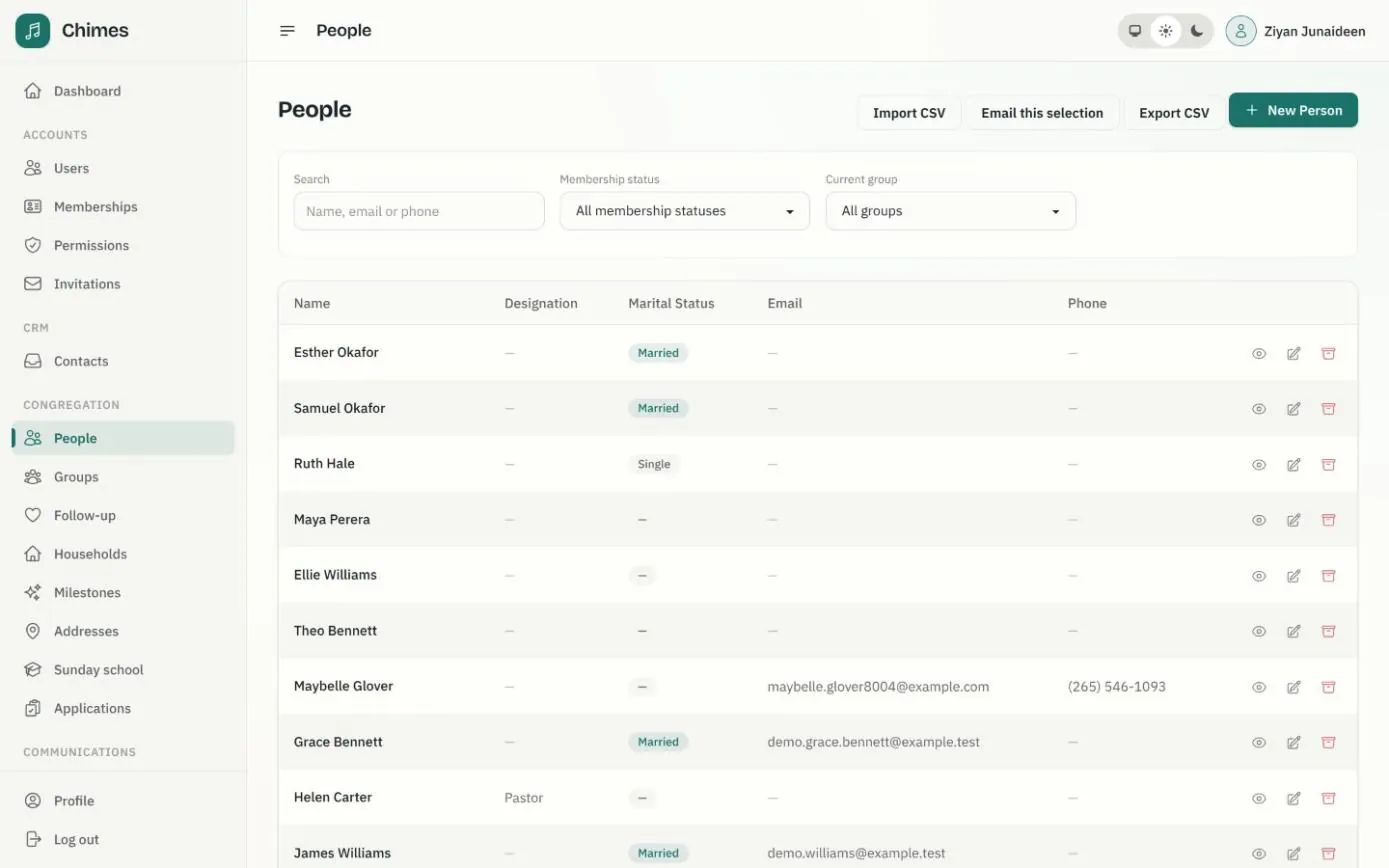
People and households
A directory of people and households with family relationships, milestones, ministry groups, membership status, and CSV import and export.
See the feature arrow_forward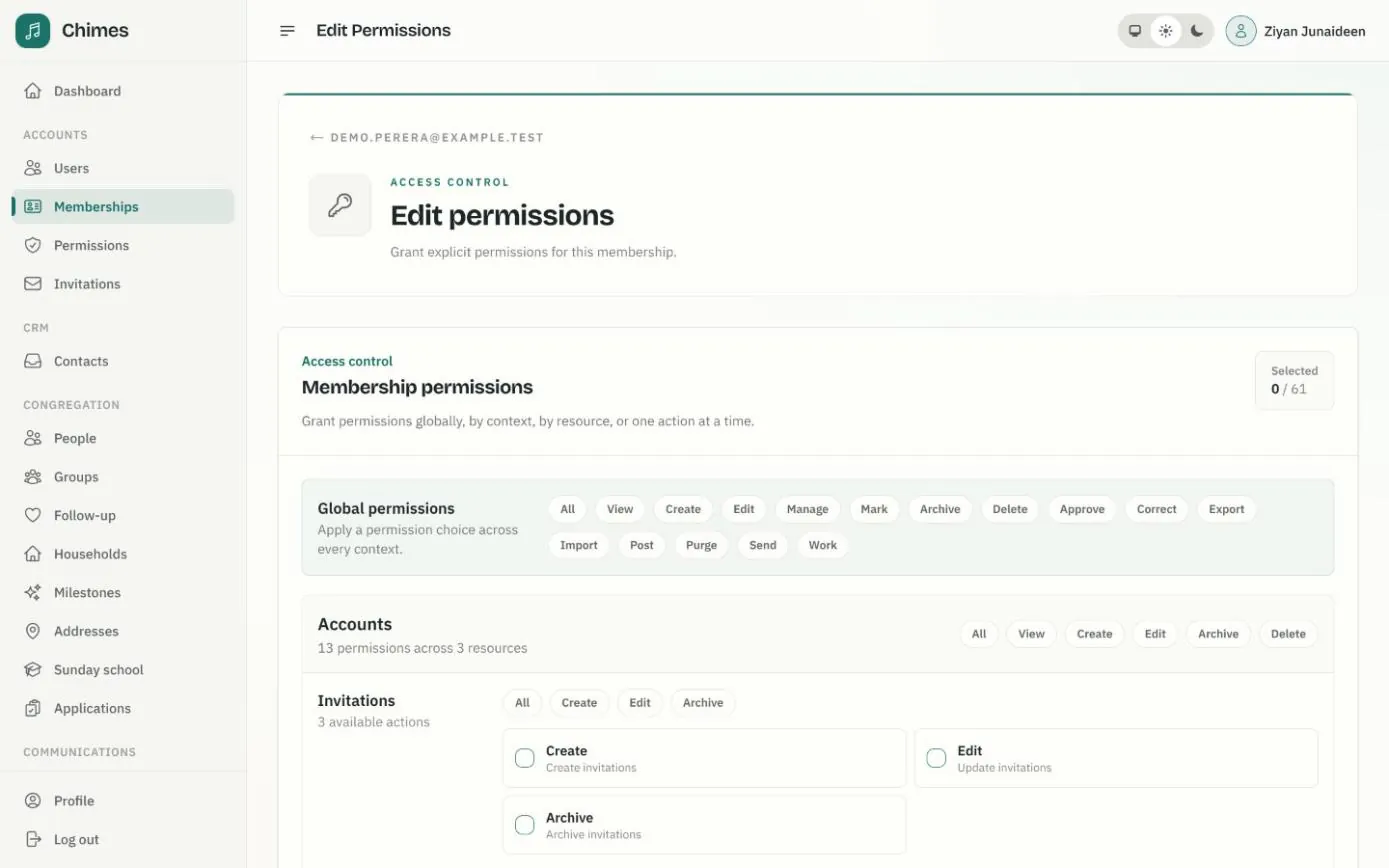
Roles, permissions and audit
Six roles with fine-grained permissions per membership, settings without a deploy, an audit log of every change, webhooks and a JSON:API.
See the feature arrow_forwardSee Chimes with your own congregation in mind.
Tell me how your church keeps its records today and where you would like Chimes hosted. I will come back with a deployment plan and a straight answer on what it will take.