www.
Giving without an account
Not everyone who wants to give has an account. A guest at a baptism, a friend of the church or a newcomer after their first Sunday can give from your website with nothing more than a name and an email address, and divide the gift between the funds that matter to them.
The gift is paid through your church's own Stripe account and joins the same donation records as every other gift. The office can later link it to the giver's record, so it counts on their giving statement.
In short
No account, no password
A name and an email address are all a visitor gives before paying. Regular givers sign in to the member app for recurring gifts.
Split it, and cover the fee
One payment can be divided between funds, and the donor can add the processing fee so each fund receives the full amount.
Your own Stripe account
Gifts settle in the church's bank account, with no platform taking a share and no card details on your server.
A church donation page that needs no account
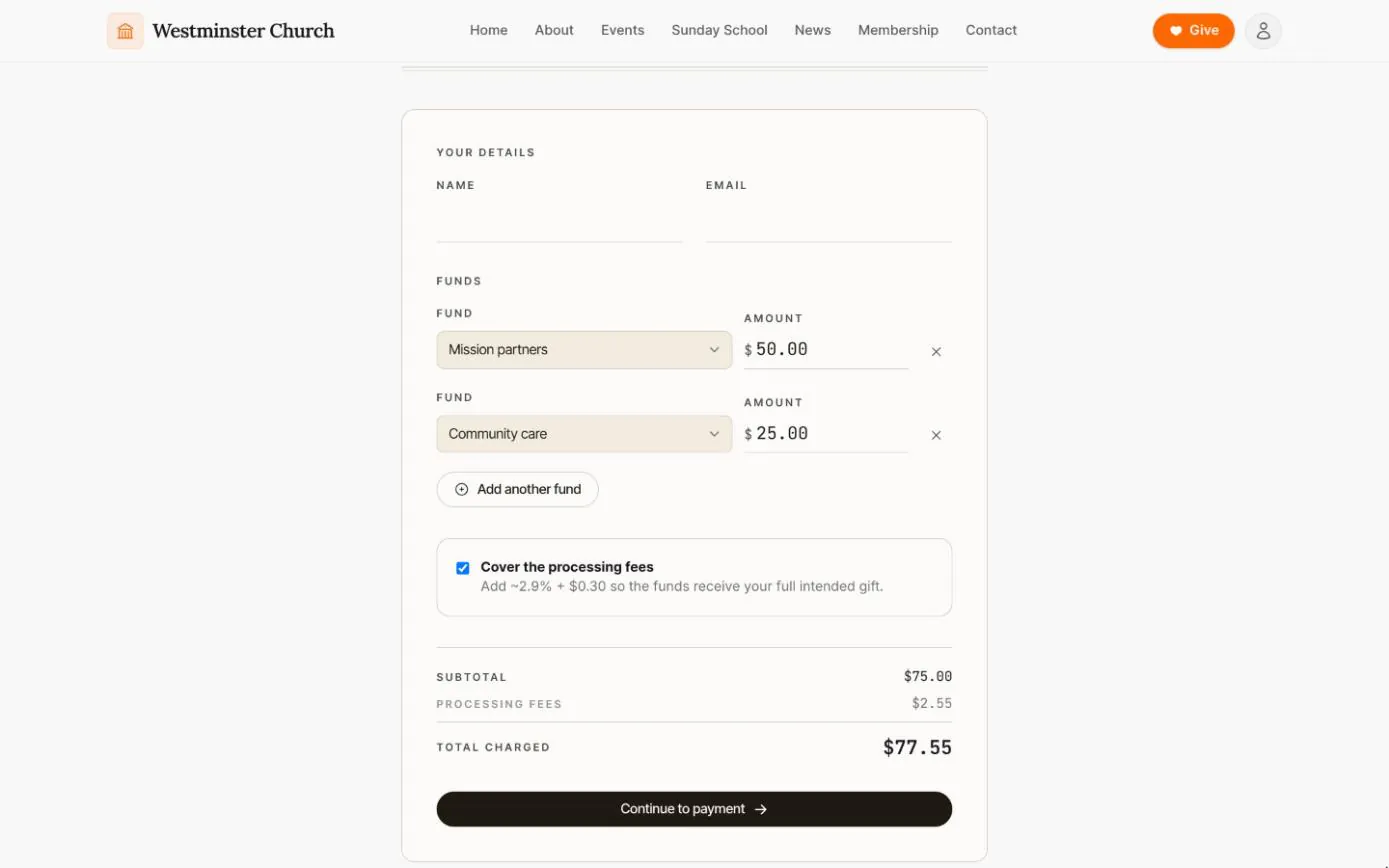
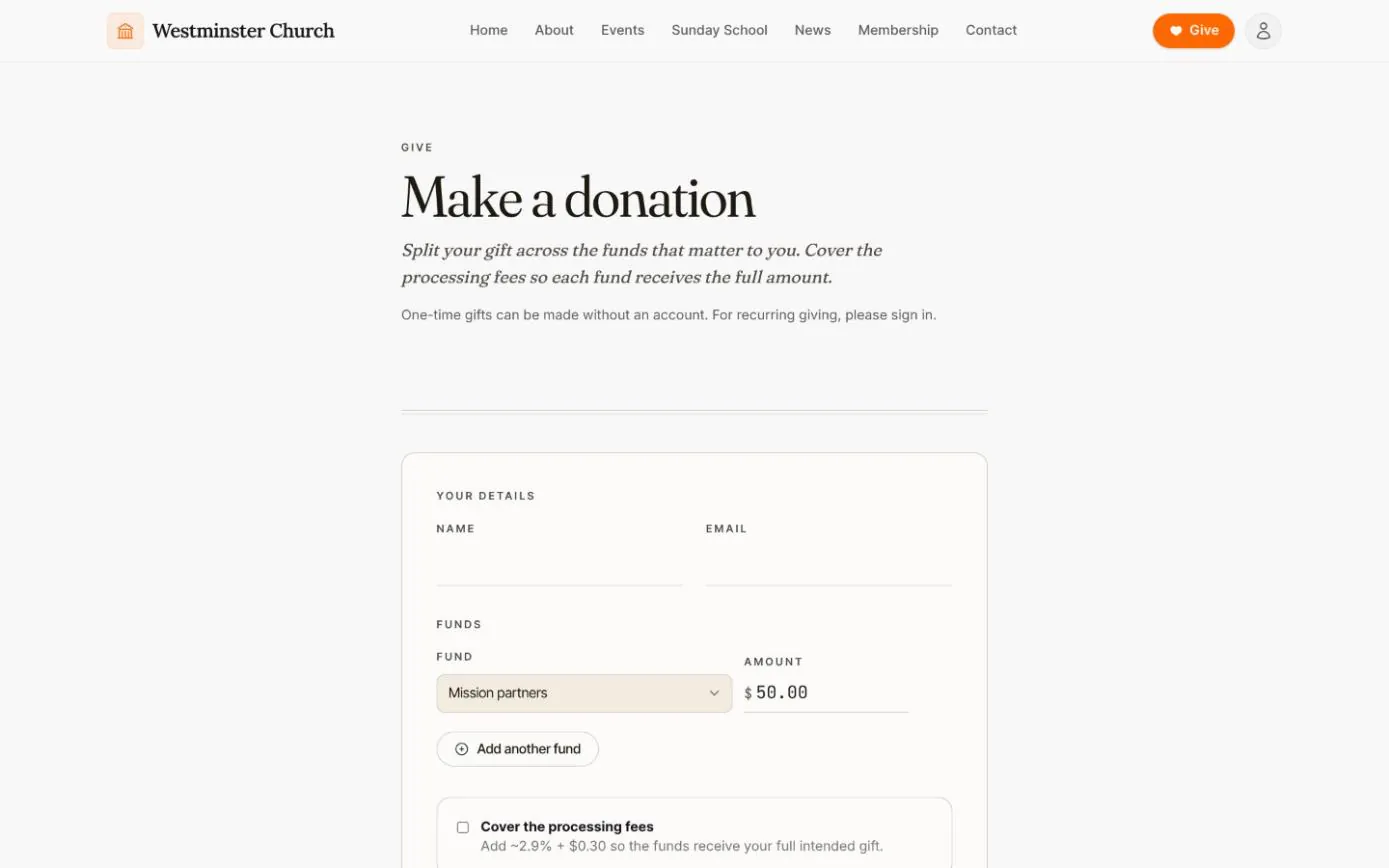
The Give button in the header of every page opens the donation form. It asks for a name, an email, a fund and an amount, and says plainly that one-time gifts need no account while recurring giving needs a sign-in.
That keeps the public page to a single gift, given in a minute. Members who want a monthly tithe set it up in the member app, where they can pause or stop it themselves.
- check A Give button in the site header, and a Give online link in the footer
- check Recurring gifts left to the member app, where donors manage them
- check Repeated attempts from one email or IP address slowed down before Stripe
From the website to the right fund
A visitor gives in a few short steps, and never has to create an account or remember a password.
Afterwards the gift sits with every other donation in the staff console, where the office can link it to the giver's record for their statement.
-
01
Choose the funds
Pick a fund and an amount, and add another fund to split the gift between them.
-
02
Cover the fee, if they like
Ticking the box adds the processing fee. The subtotal, the fee and the total charged are shown before anything is paid.
-
03
Give a name and an email
That is all the form asks for. The email is where the thank-you is sent.
-
04
Pay with Stripe
Stripe's payment form takes a card or a US bank account. Card details go to Stripe, never to Chimes.
-
05
Thanked, on screen and by email
A thank-you page shows how the gift was divided, and an email follows once the payment goes through.
The funds on the form are the ones your office sets up
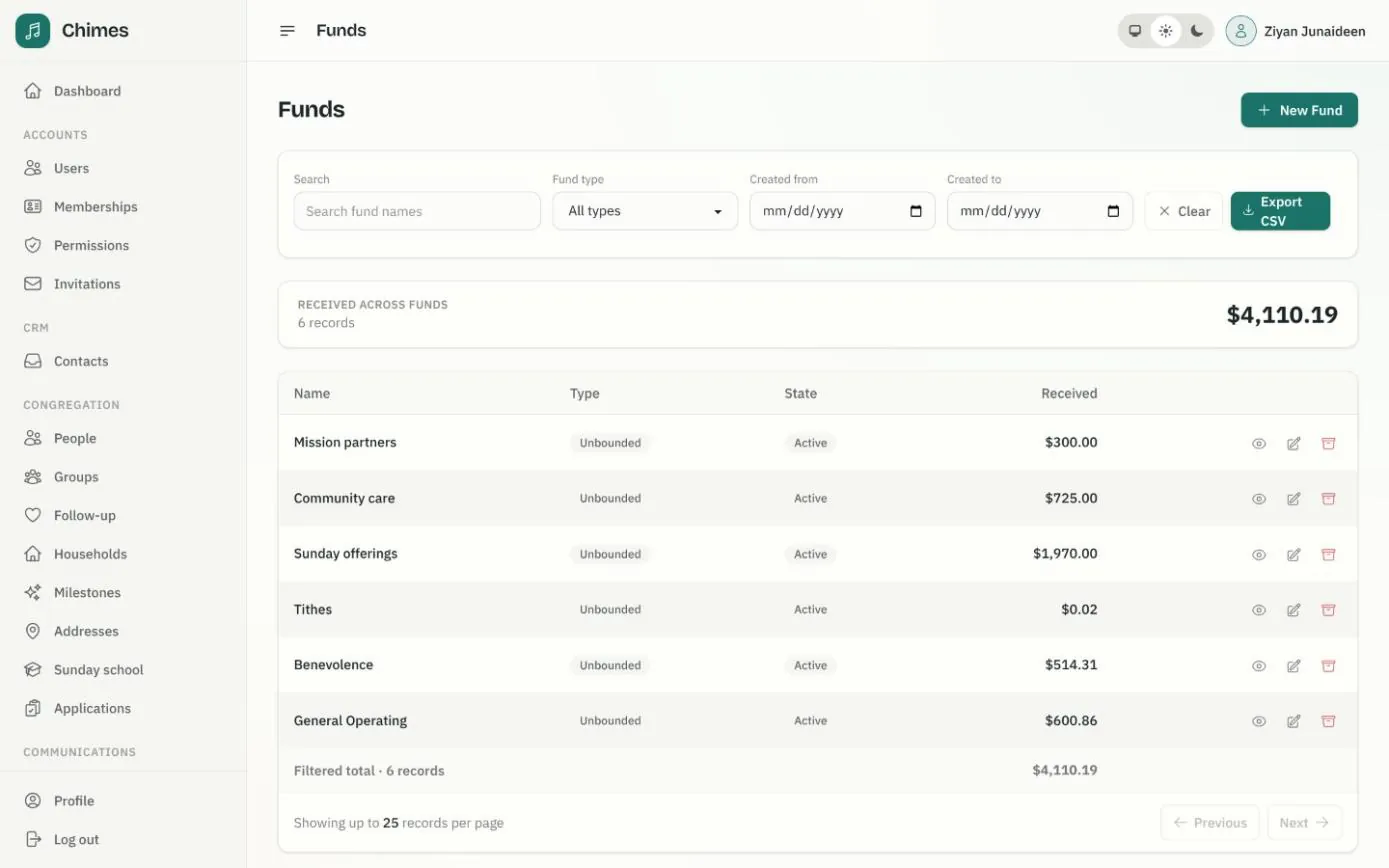
The fund menu lists the church's funds from the staff console: open-ended funds such as Sunday offerings, appeals with a goal, and campaigns with dates. Add a fund and it appears on the website and in the member app; archive it and it leaves both.
Each fund's received total counts gifts from the website, the member app and the Sunday offering batches, and the list exports as CSV for the treasurer.
- check Open-ended funds, funds with a goal and funds with dates
- check Totals from received gifts, online and offline
- check The fund list exported as CSV
Related features
Online giving
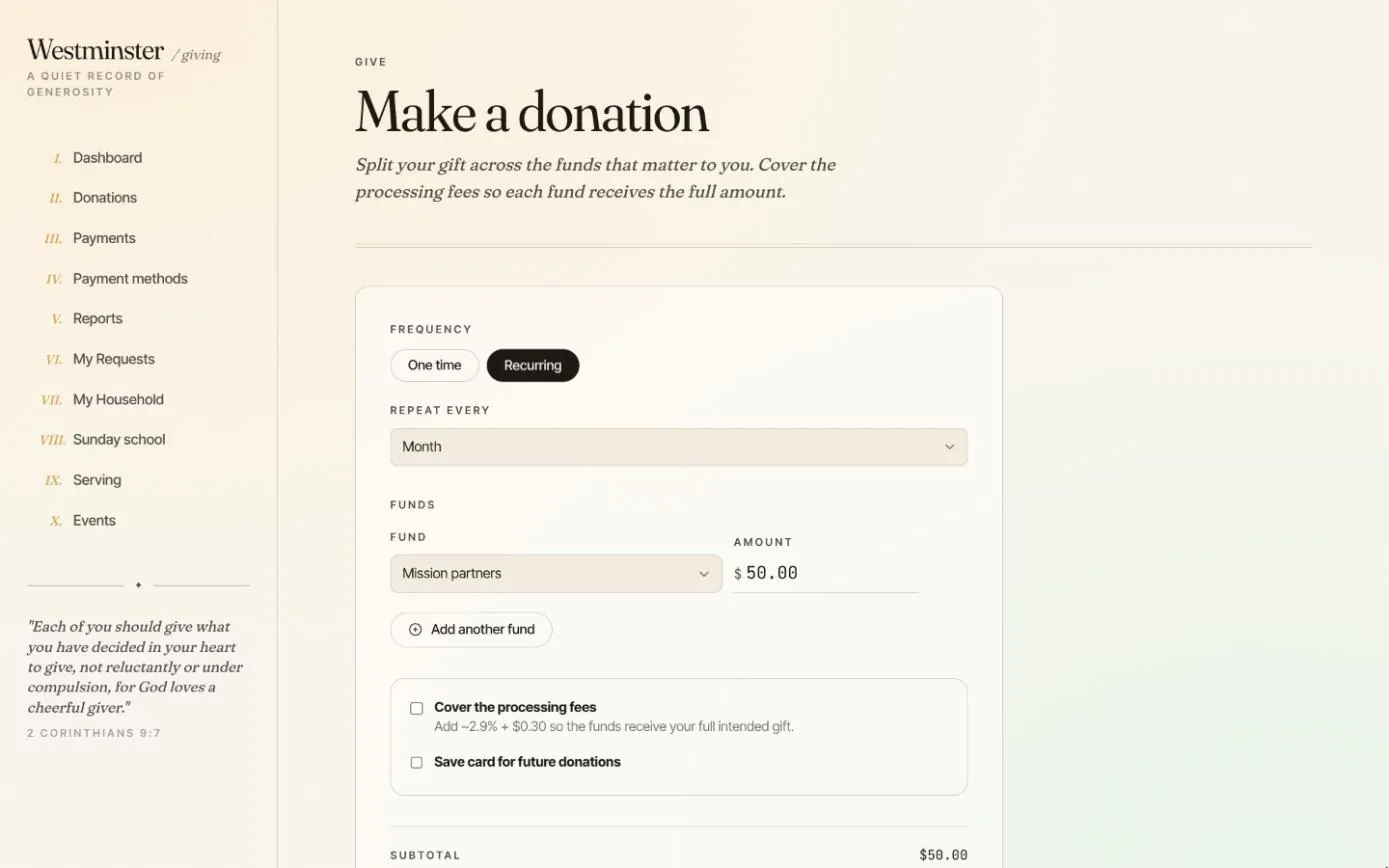
One-time and recurring gifts split across funds, saved cards and bank accounts, an optional cover-the-fee and a dashboard of everything given this year.
See the feature arrow_forward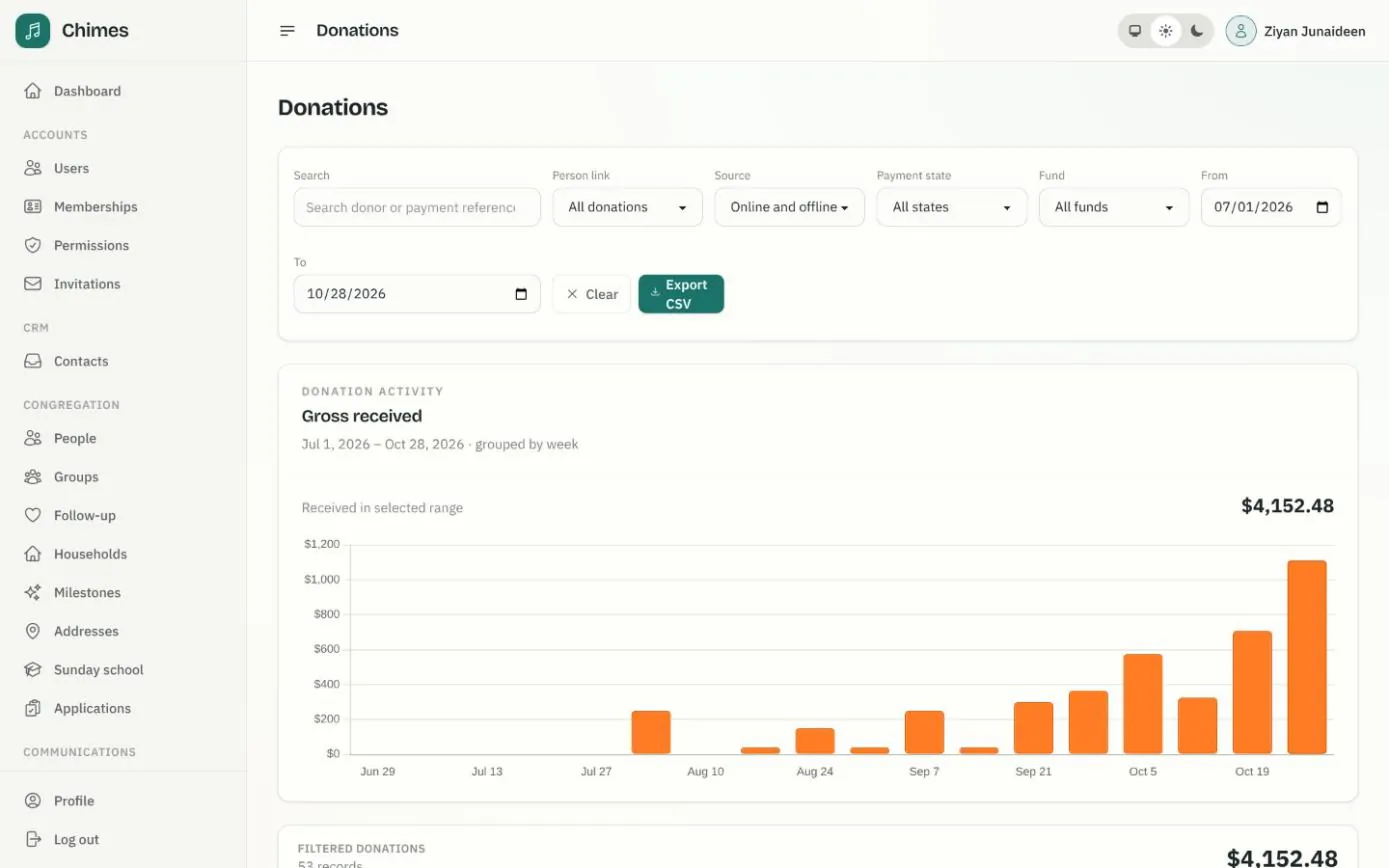
Funds, gifts and offerings
Funds with goals or date ranges, every online and offline gift with its fund split, and keyboard-first batches for counting the Sunday offering.
See the feature arrow_forward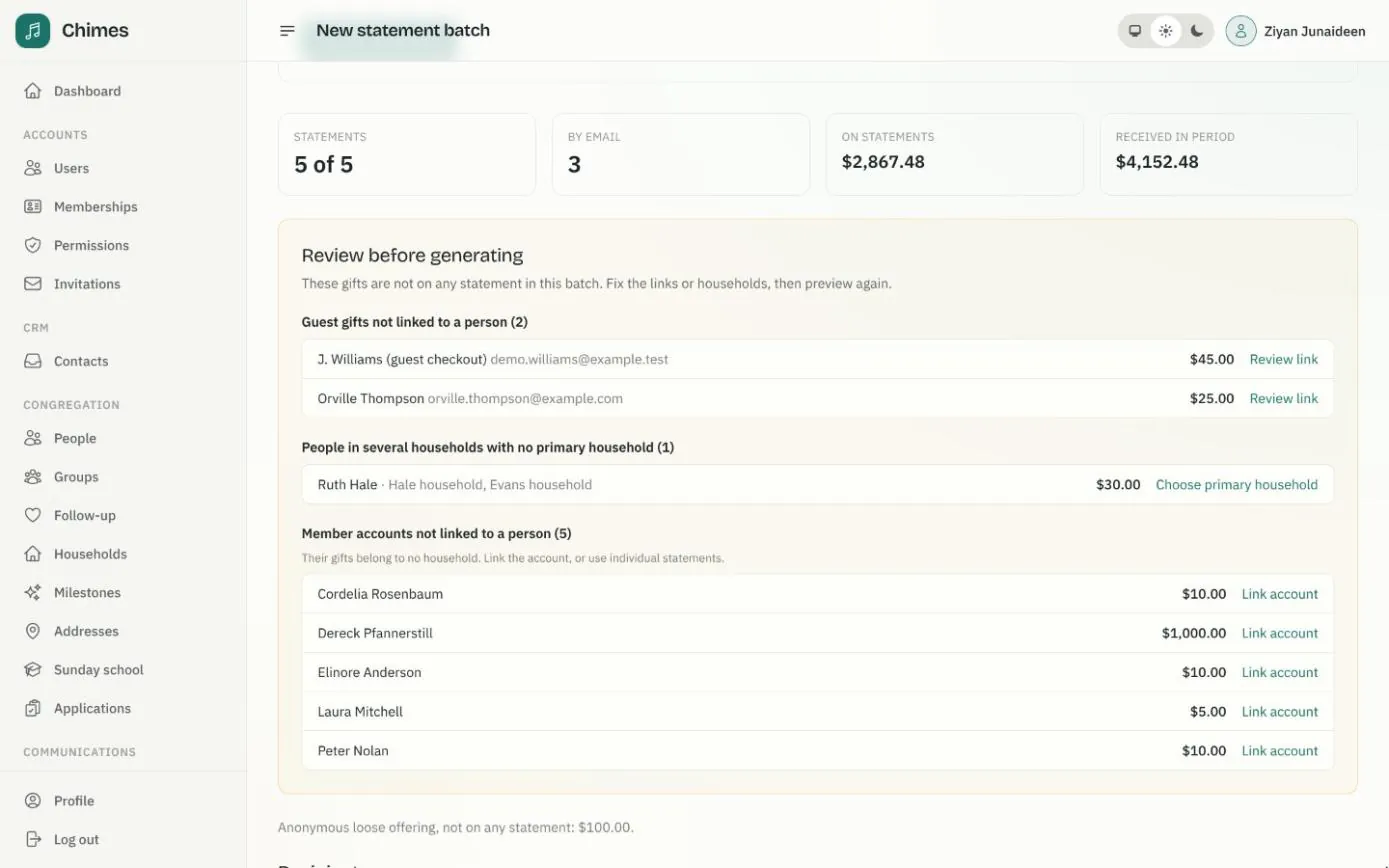
Year-end giving statements
Statement batches for a financial year or any period, with a preview that flags problems first, PDFs by email and a print batch for the rest.
See the feature arrow_forwardSee Chimes with your own congregation in mind.
Tell me how your church keeps its records today and where you would like Chimes hosted. I will come back with a deployment plan and a straight answer on what it will take.