admin.
Funds, gifts and offerings
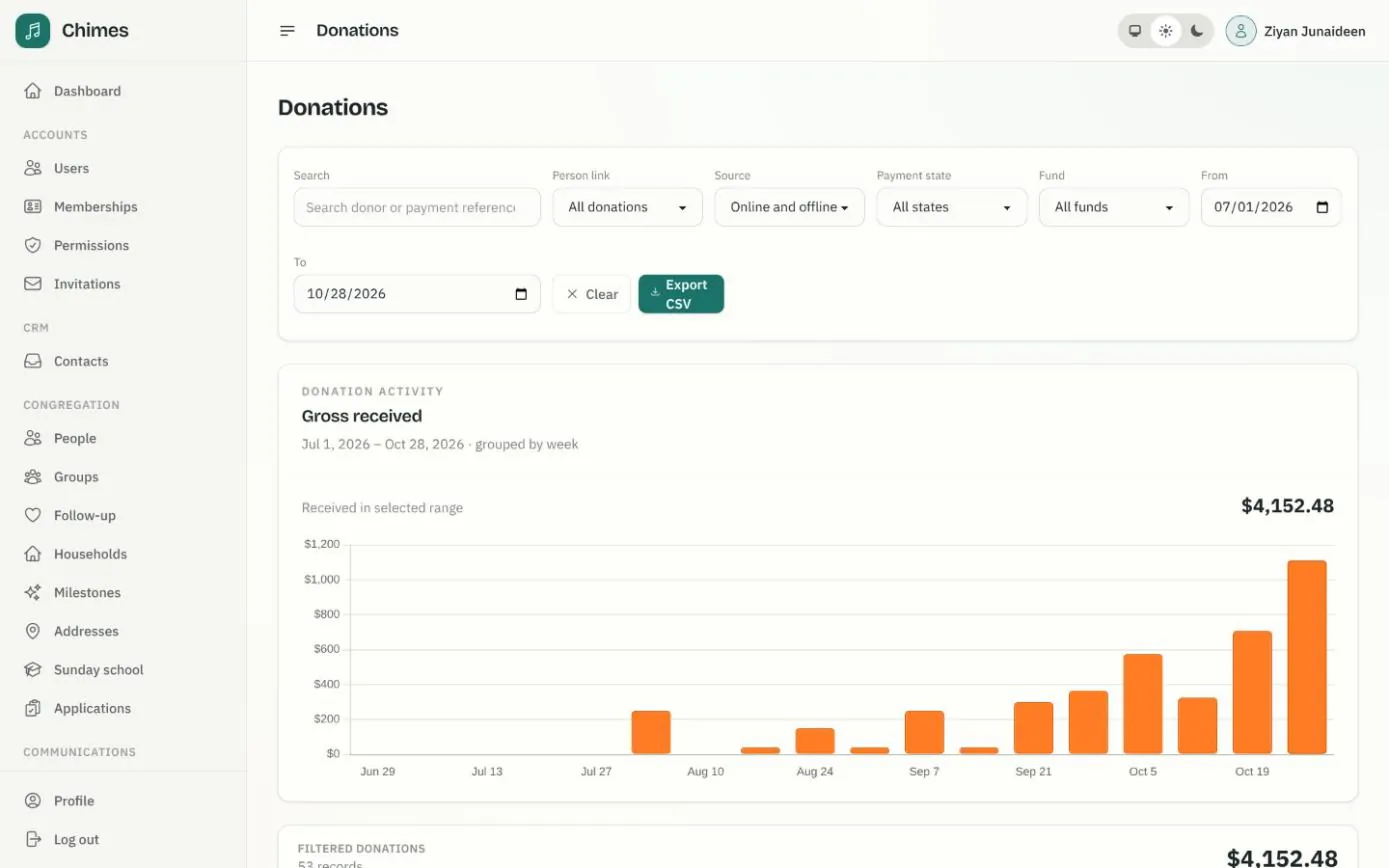
Every gift your church receives lands in one ledger: card and bank gifts from the website and the member app, recurring gifts, and the cash and checks counted after the Sunday service. Staff filter by fund, source, payment state or date, see the pattern week by week in a chart, and export the list as CSV.
Members' refund requests wait in a review queue, and a refund is only recorded once Stripe confirms it. Offering counts are reconciled before they are posted, so the figures the office reports can be trusted.
In short
Online and in person, together
Posted cash and check gifts become ordinary giving records, in donor history, fund totals and statements.
Counted before posted
A batch can't be posted until the gifts entered add up to the counted total and every check has its number.
Corrections with a reason
Posted gifts are never edited in place. Voids and corrections need a reason, and both are kept in the log.
Church funds, appeals and campaigns with live totals
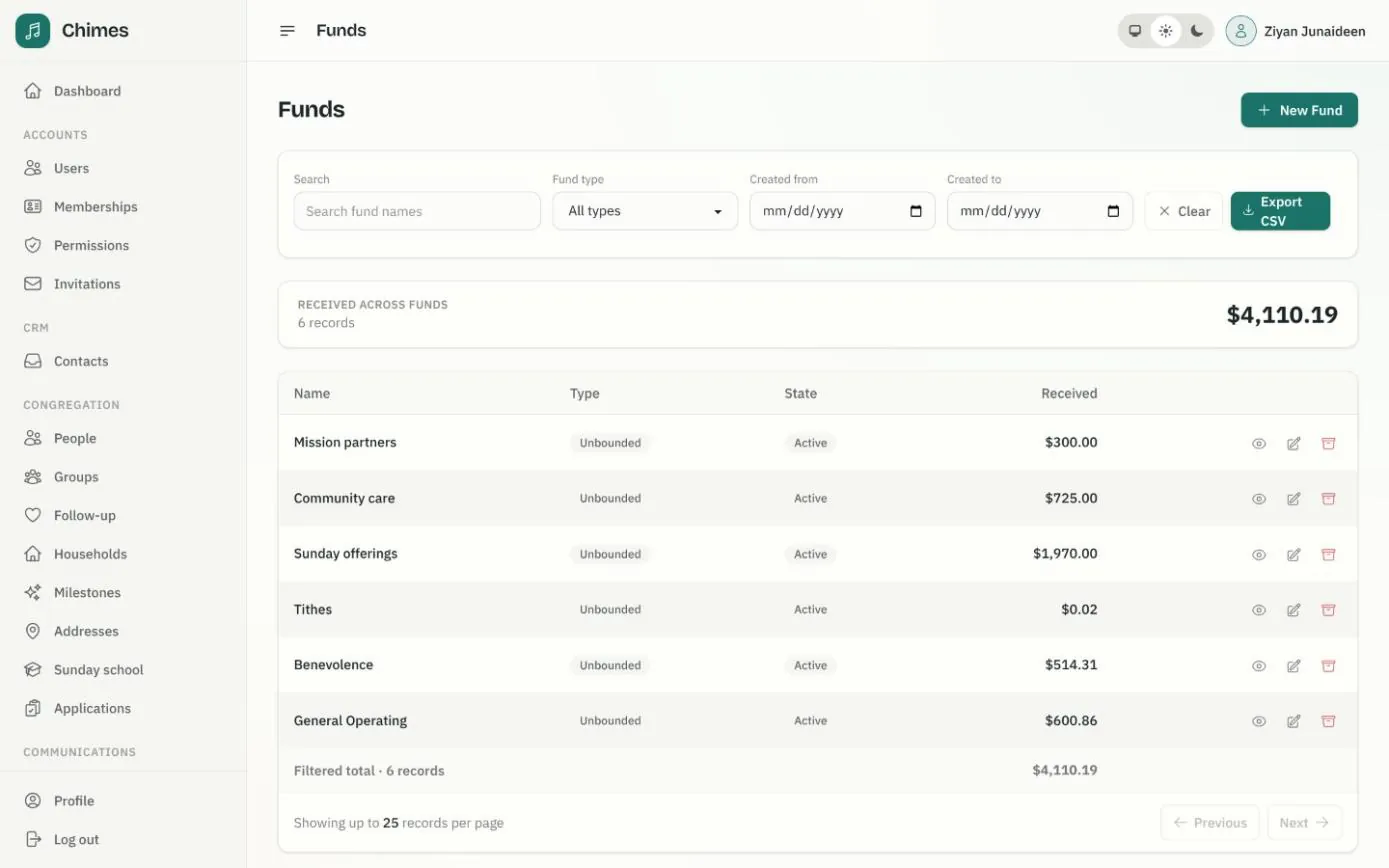
Set up a fund for each purpose your congregation gives to. A fund can be open-ended, capped at a goal amount, or limited to the dates of a campaign, and donors choose from your funds when they give.
Totals are worked out from the gifts actually received, online and offline, so they never drift from the records behind them. Fully refunded payments drop out on their own.
- check Open-ended funds, goal amounts and dated campaigns
- check Gifts split across several funds count towards each one
- check The fund list, with its totals, exported as CSV
Record cash and check offerings in batches
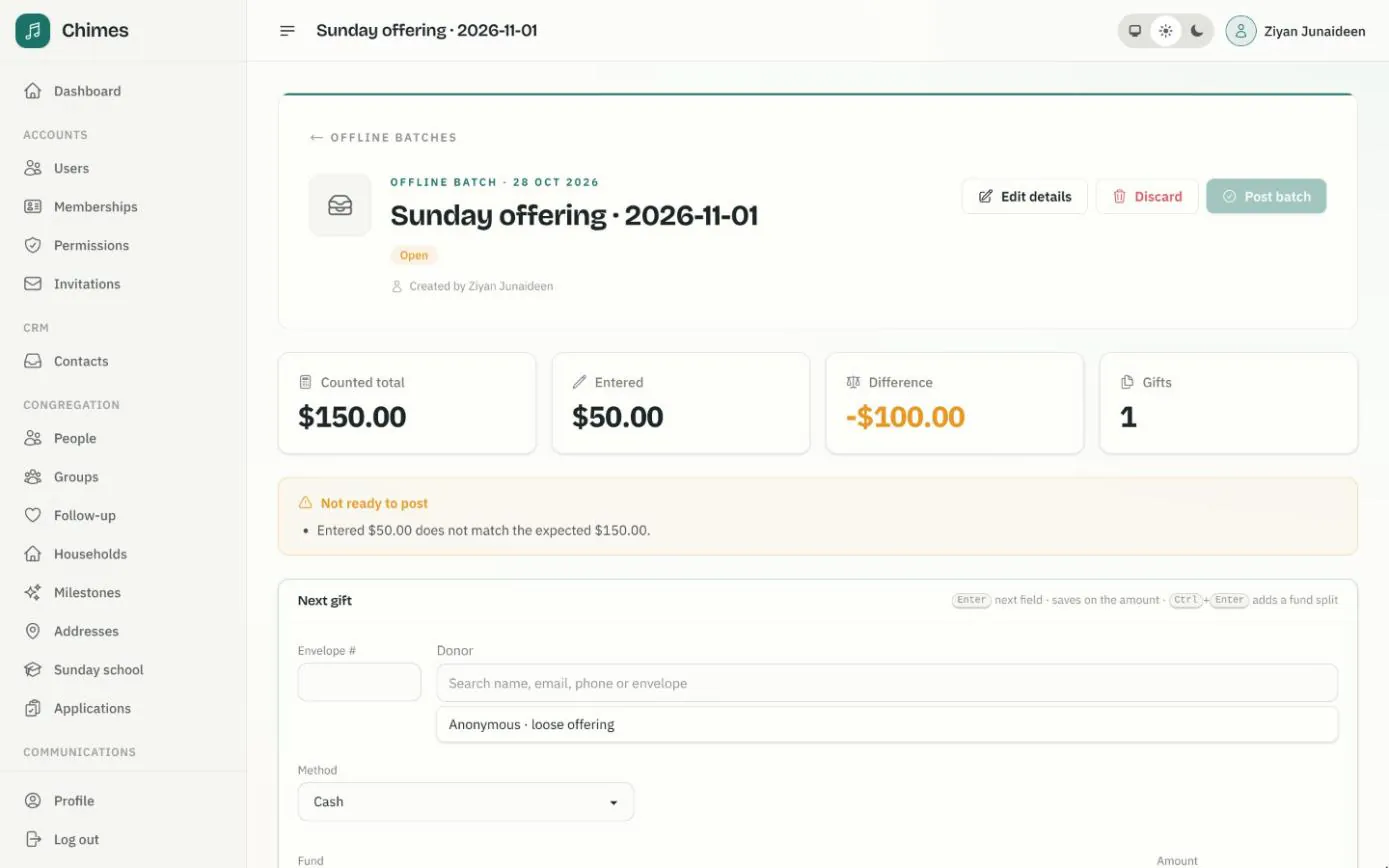
After the service, the counters open a batch, enter the total from the counting sheet and key each gift. Typing a household's offering envelope number fills in the donor, so nobody has to read out names at the counting table.
The entry form is built for the keyboard: Enter moves to the next field and saves on the amount, and Ctrl+Enter splits a gift across another fund. Several counters can work in the same batch at once.
- check Cash, checks, bank transfers and other gifts; checks need a check number
- check Loose offering recorded as anonymous, and only when chosen on purpose
- check Warnings for a repeated check number or an unusually large gift
From the collection plate to the giving record
One batch matches one offering count or bank deposit, so the record in Chimes lines up with the slip that goes to the bank.
Volunteer counters can be given permission to key gifts into open batches and nothing more. Posting and correcting are separate permissions, held by owners and admins.
-
01
Open a batch
Name it, set the date received and the deposit reference, and enter the counted total, with the number of gifts if you counted them.
-
02
Key each gift
Find the donor by envelope number, name, email or phone, then pick the method and the funds. Each gift saves as soon as it is entered.
-
03
Reconcile
The batch shows counted, entered and the difference, with totals by fund and by method to match the cash and check deposit slips.
-
04
Post
Posting is refused while anything is out of place, such as a total that doesn't match or an archived fund. Posted gifts appear in donor history and statements.
-
05
Correct if needed
Void a gift, or record a corrected one in its place, always with a reason. The batch shows its posted and current totals side by side.
Offering corrections that leave an audit trail
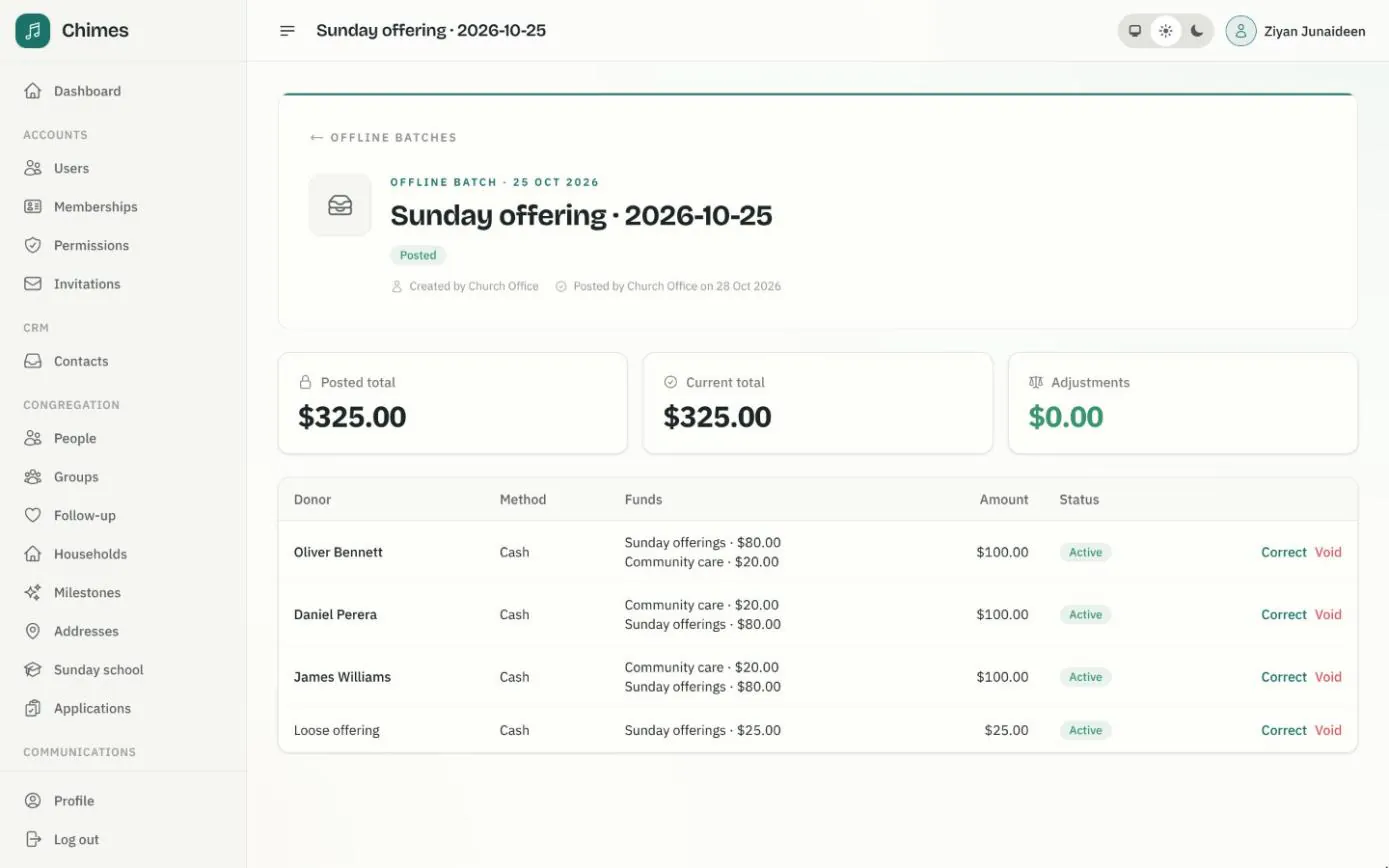
Once a batch is posted, its gifts can't be edited and the batch can't be reopened. If a gift was keyed to the wrong household or for the wrong amount, staff void it or correct it with a reason, and Chimes records the replacement in the same batch.
The batch keeps its posted total next to the current one and flags any difference from the deposit. The corrections log and the audit log show who changed what, when and why.
- check Each gift's donor, method and funds, as posted
- check Void and Correct, each with a required reason
- check Batches that no longer match their deposit flagged in the list
Related features
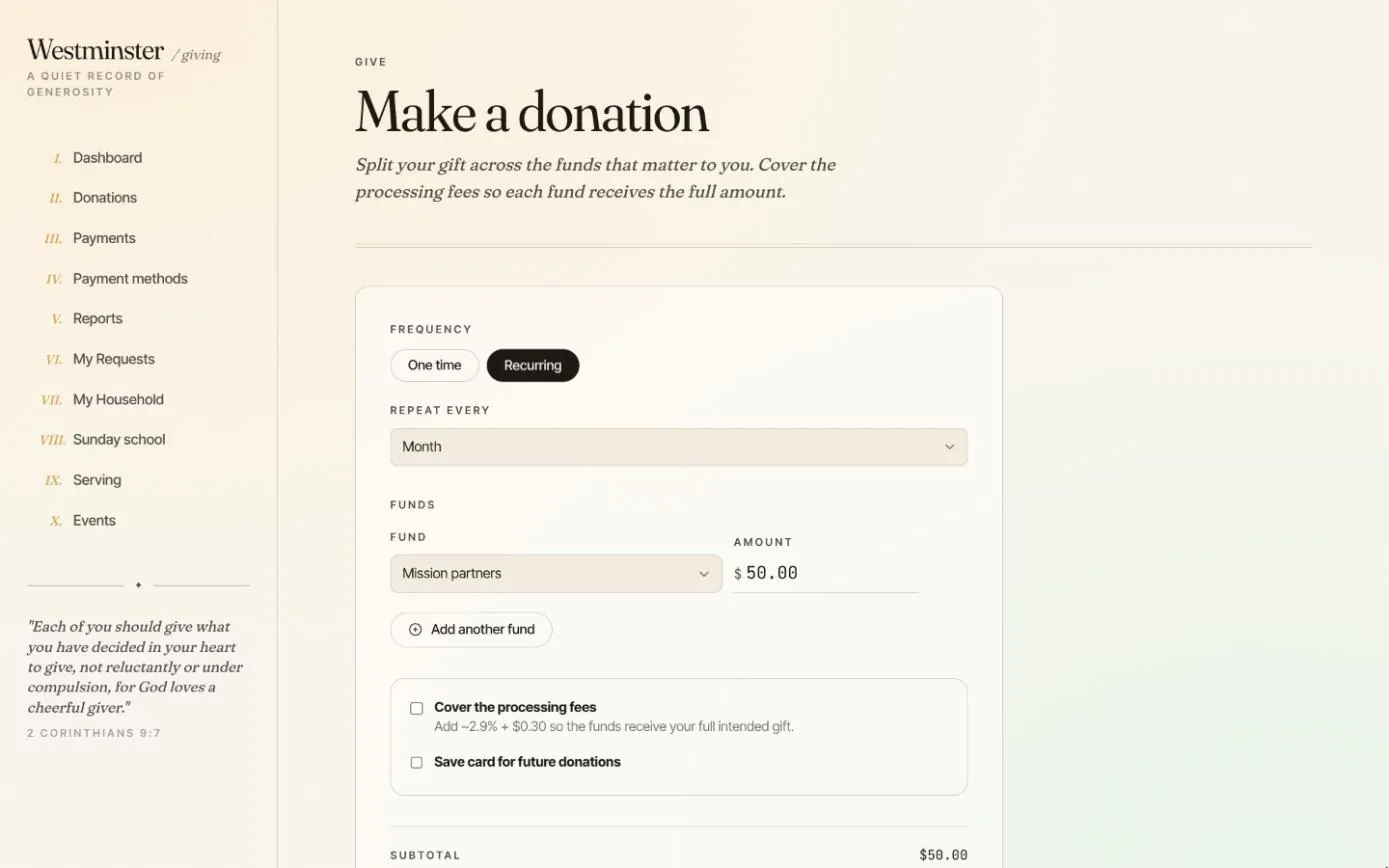
Online giving
One-time and recurring gifts split across funds, saved cards and bank accounts, an optional cover-the-fee and a dashboard of everything given this year.
See the feature arrow_forward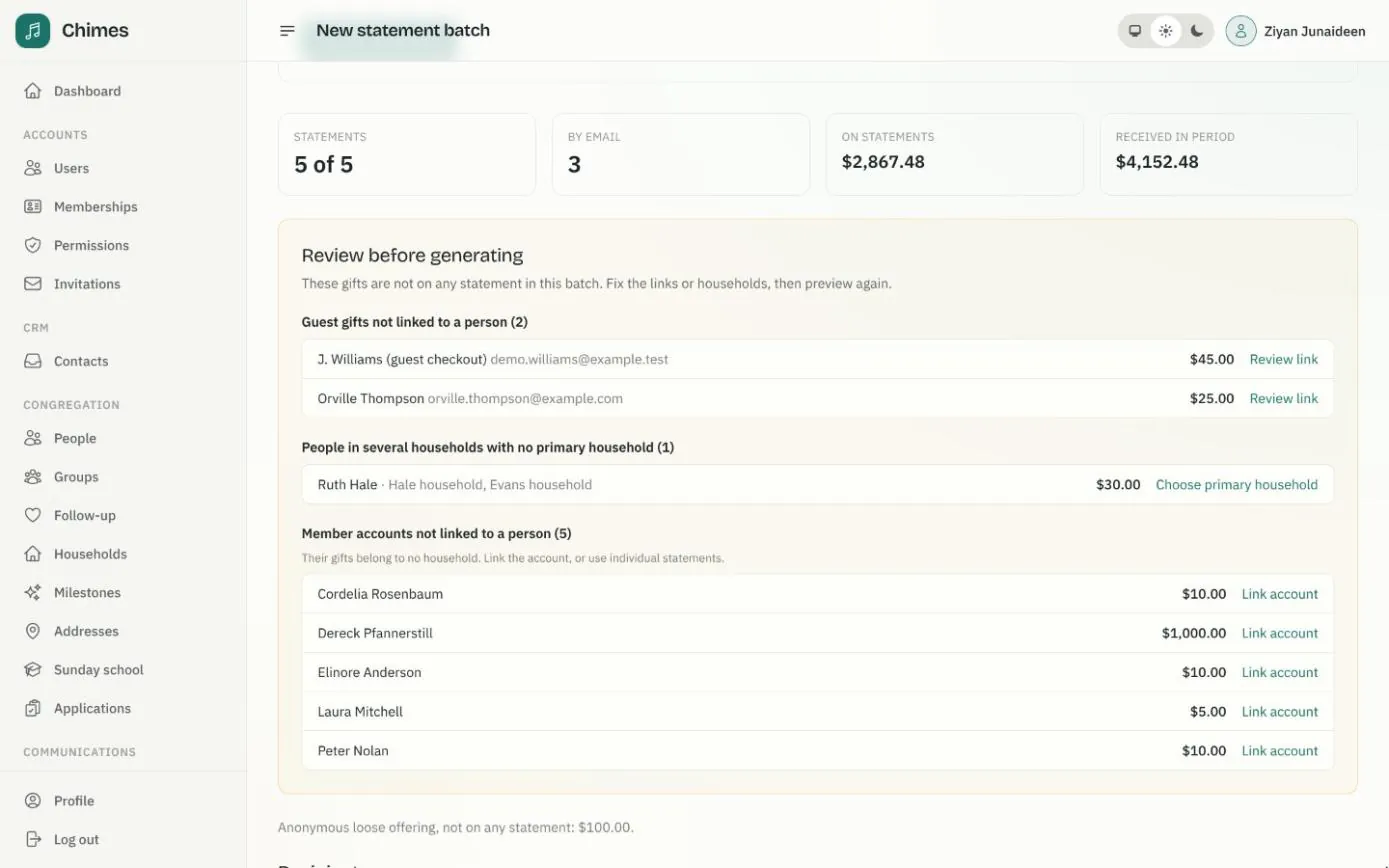
Year-end giving statements
Statement batches for a financial year or any period, with a preview that flags problems first, PDFs by email and a print batch for the rest.
See the feature arrow_forward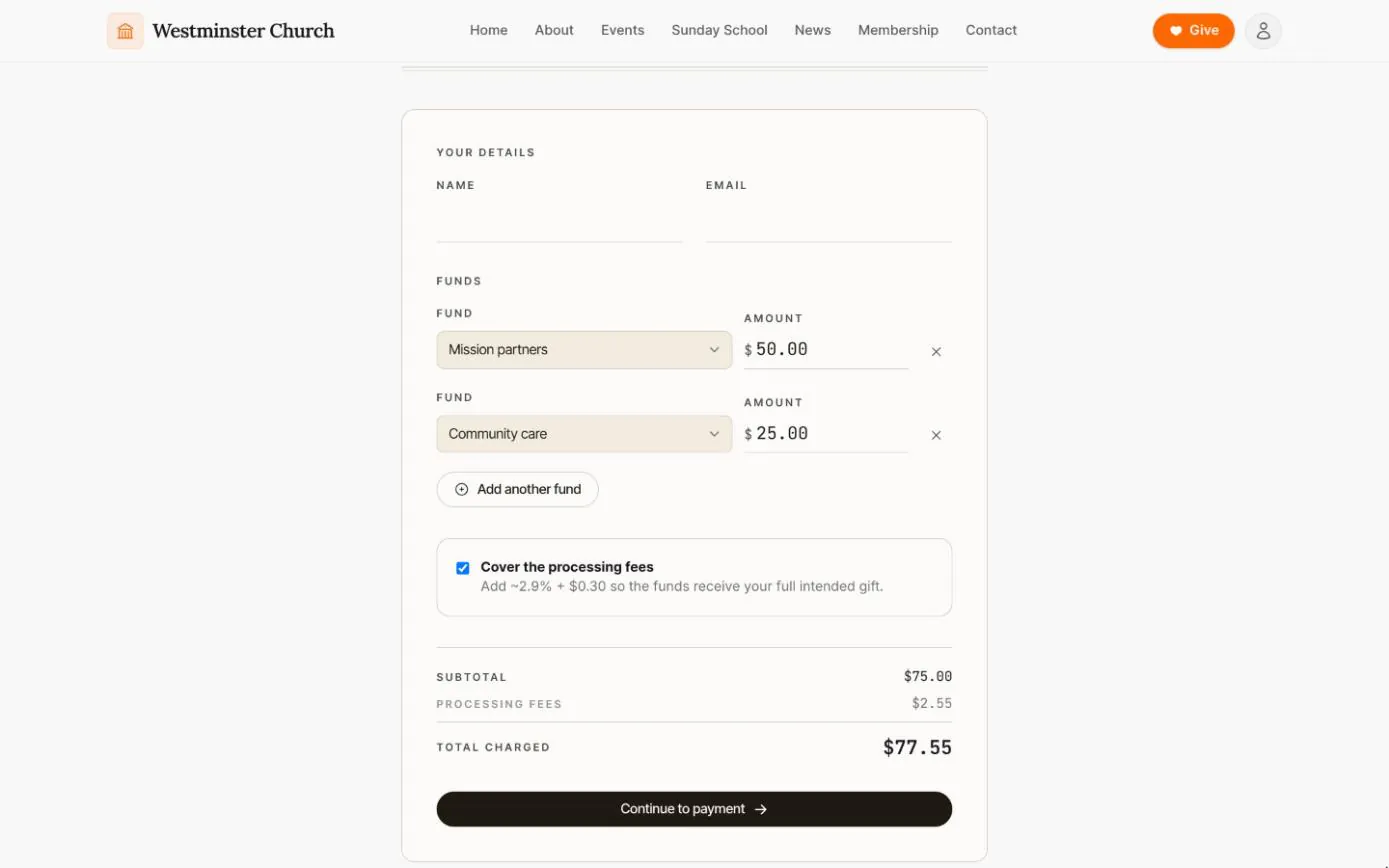
Giving without an account
A public giving page where anyone can split a one-time gift across funds and cover the processing fee, without creating an account.
See the feature arrow_forwardSee Chimes with your own congregation in mind.
Tell me how your church keeps its records today and where you would like Chimes hosted. I will come back with a deployment plan and a straight answer on what it will take.