admin.
Year-end giving statements
At the end of the financial year, the office prepares giving statements in one batch for every donor, including those who never sign in to the member app. Choose the period, choose one statement per household or per donor, and see who will receive one before anything is generated.
Statements use the same letter and wording members download for themselves, and include the cash and check gifts the office records alongside online giving.
In short
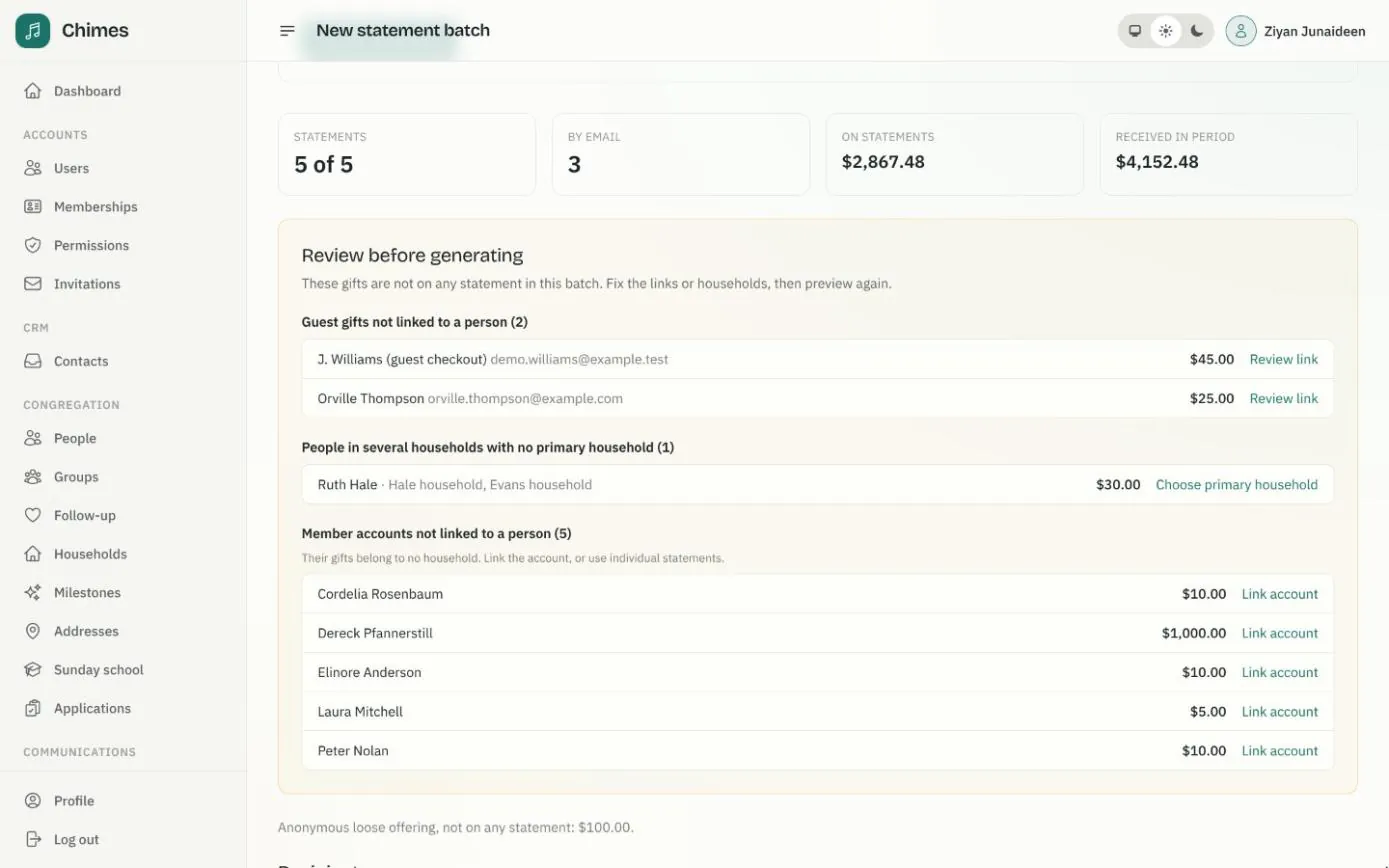
Problems found first
Guest gifts with no person, people in several households and unlinked accounts are listed before a single PDF is made.
Email or print
Donors with a working email address get a PDF attachment. The rest are gathered into one PDF ready to print.
Never sent twice by mistake
Each statement is emailed once. If a send is interrupted, Chimes marks the outcome unknown rather than sending it again.
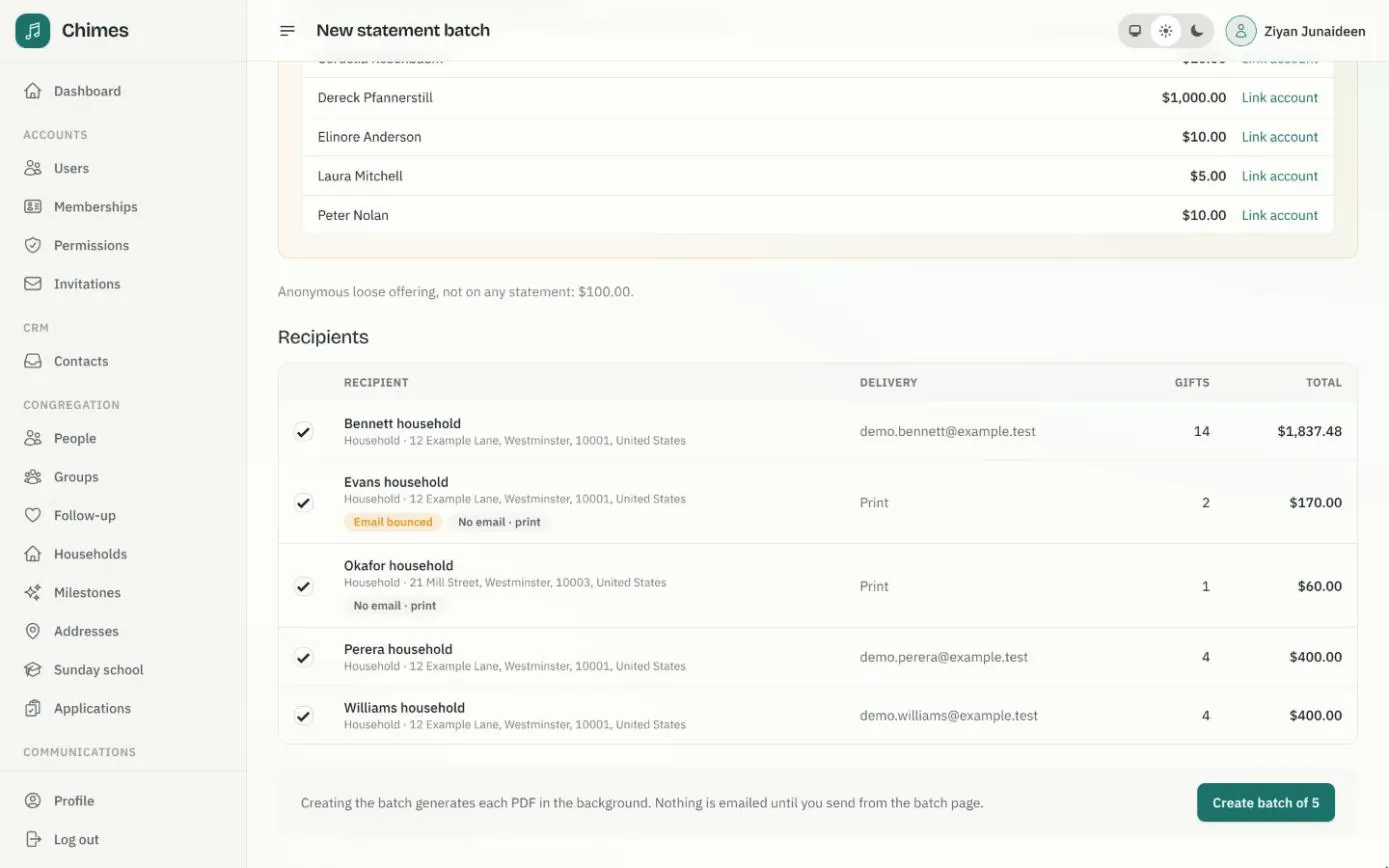
Preview every giving statement before it is made
The preview lists each recipient with how they will receive their statement, by email or in the print batch, along with their gift count and total. Flags explain anything unusual: an address that bounced, a household with no email or postal address, or a person with no current household.
Untick anyone who shouldn't receive a statement. The preview also sets what is on statements against everything received in the period, with anonymous loose offering shown as its own total.
- check The last or current financial year, a calendar year or custom dates
- check All donors, or only those without a member app account
- check Household statements sent to the household's primary contact
From the preview to the donor's inbox
Nothing is emailed until you press the button, and creating, emailing, printing and every download are written to the audit log.
Statement files are stored privately and expire after fourteen days. Emails already sent keep their attachment.
-
01
Choose the period
Last financial year, this financial year to date, last calendar year or custom dates, using your church's financial year start.
-
02
Preview and review
Link guest gifts to the right person and give people in several households a primary one, then preview again. A matching email is never enough on its own.
-
03
Create the batch
The recipients and their gifts are fixed as they stand, and each PDF is generated in the background while the batch page updates.
-
04
Email the statements
One press sends each statement that has an address. A statement whose gifts were corrected since is held back until it is regenerated.
-
05
Print the rest
Prepare one PDF of every statement without email, each starting on a new page and sorted by name, ready for the post.
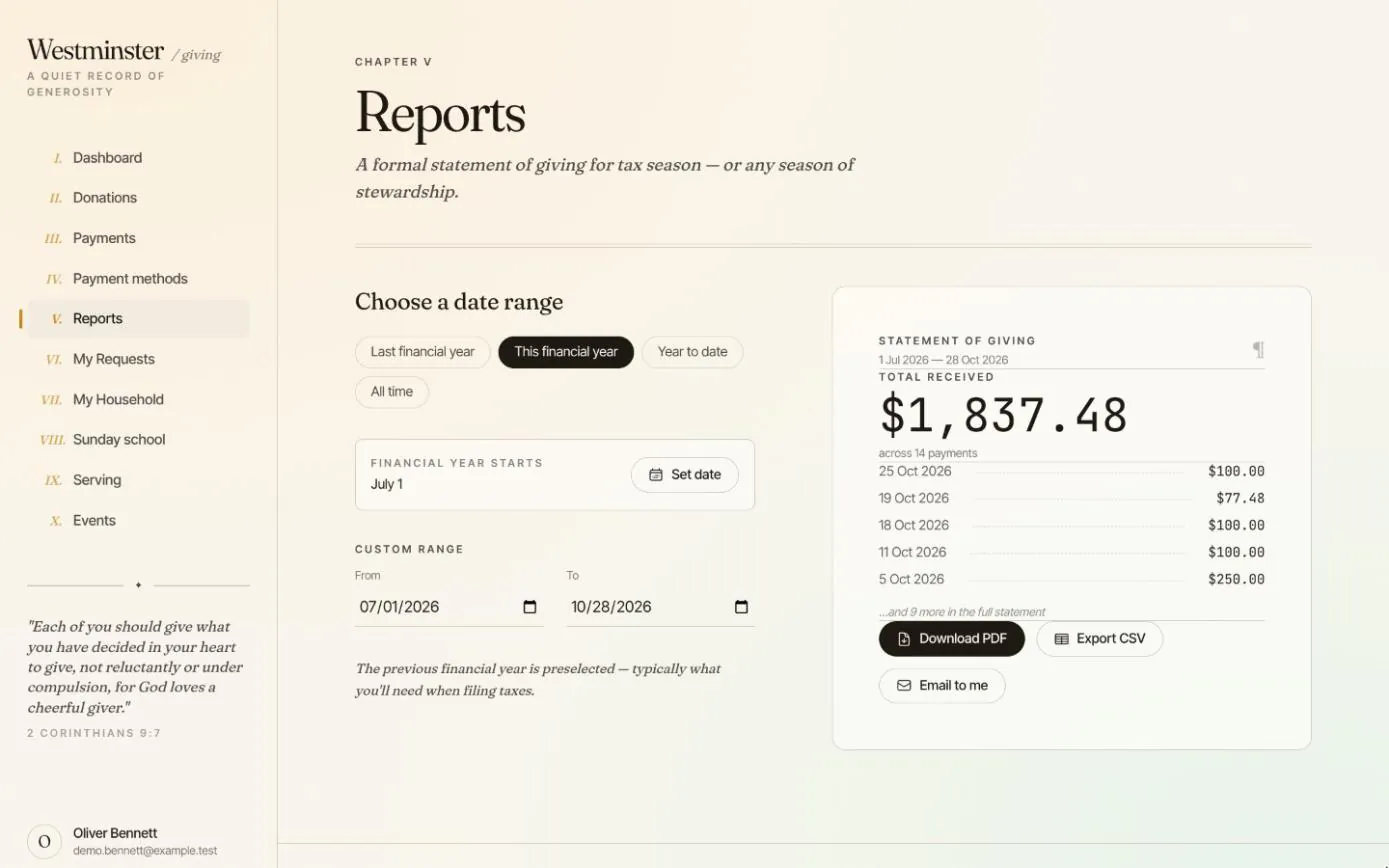
Members can download their own giving statement too
A member who needs a statement in the middle of the year doesn't have to ask the office. In the member app they choose a financial year or any dates, and download a PDF or CSV or have it emailed to them.
Staff batches use the same rules, so a donor's individual statement from the office covers exactly the gifts their own statement shows.
- check Each member can set when their financial year starts
- check Cash and check gifts recorded by the office included
Related features
Giving history and statements
Every gift and payment in one ledger, including cash and checks the office records, and a statement for any financial year as a PDF or CSV.
See the feature arrow_forward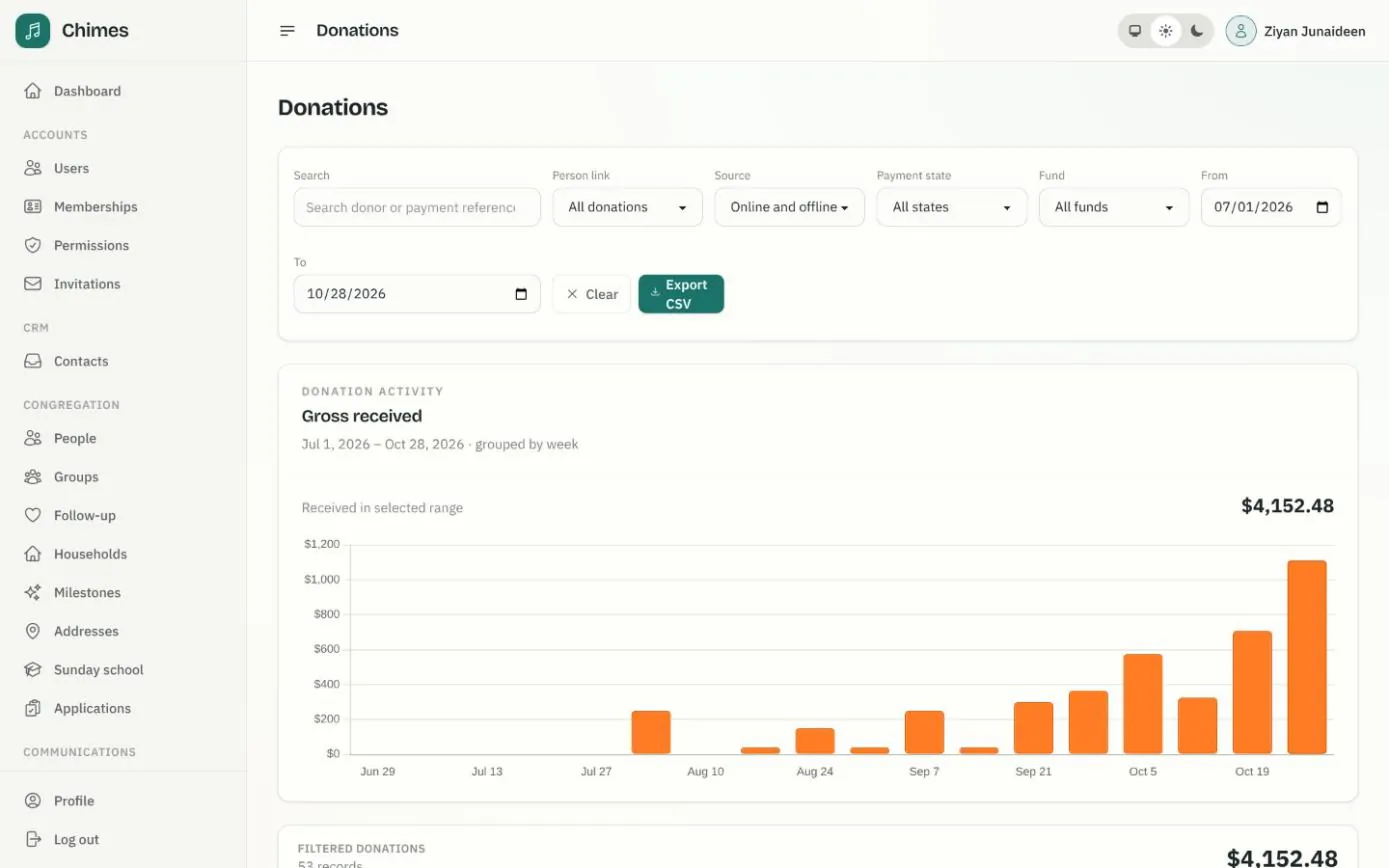
Funds, gifts and offerings
Funds with goals or date ranges, every online and offline gift with its fund split, and keyboard-first batches for counting the Sunday offering.
See the feature arrow_forward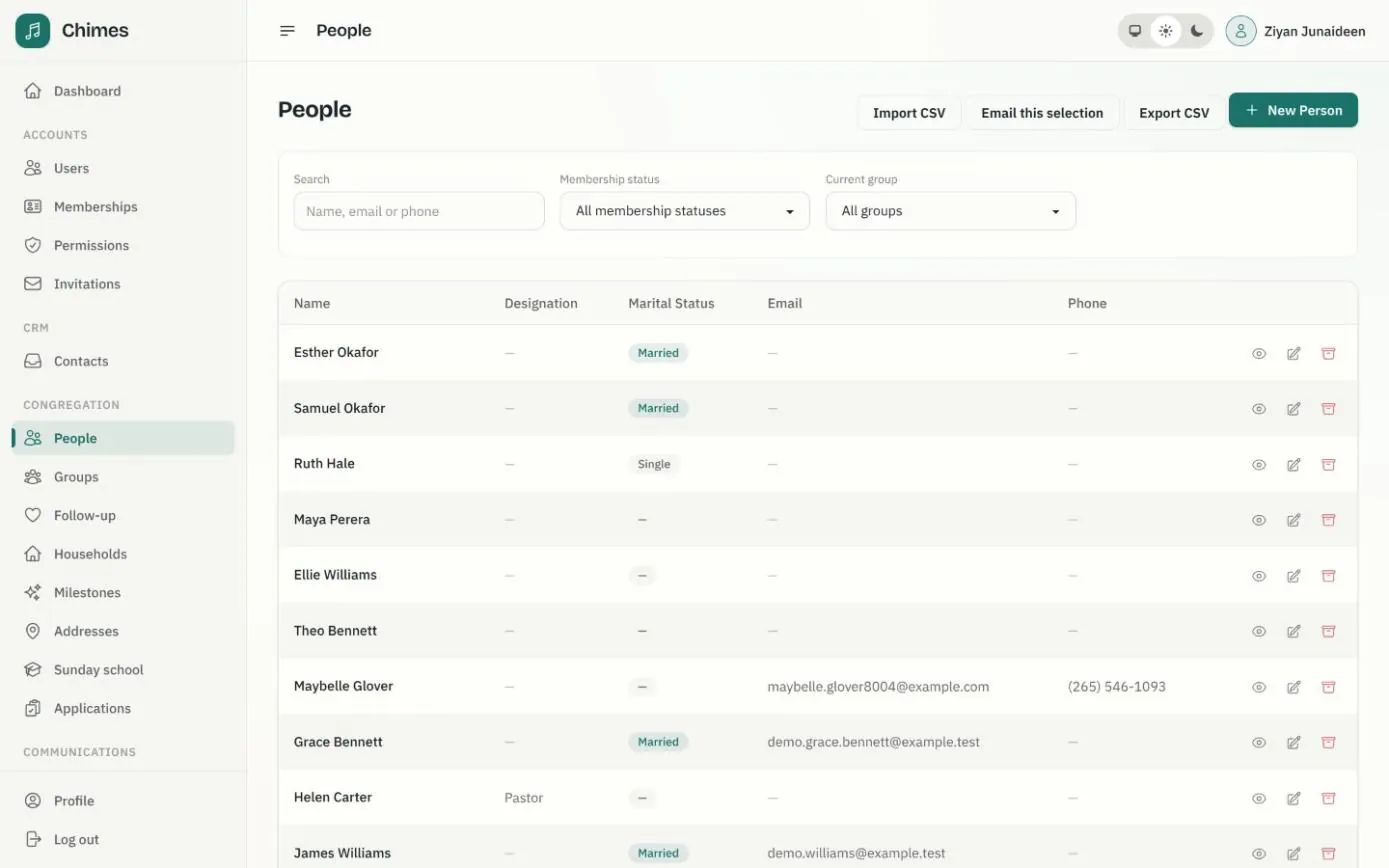
People and households
A directory of people and households with family relationships, milestones, ministry groups, membership status, and CSV import and export.
See the feature arrow_forwardSee Chimes with your own congregation in mind.
Tell me how your church keeps its records today and where you would like Chimes hosted. I will come back with a deployment plan and a straight answer on what it will take.