www.
Text-to-give
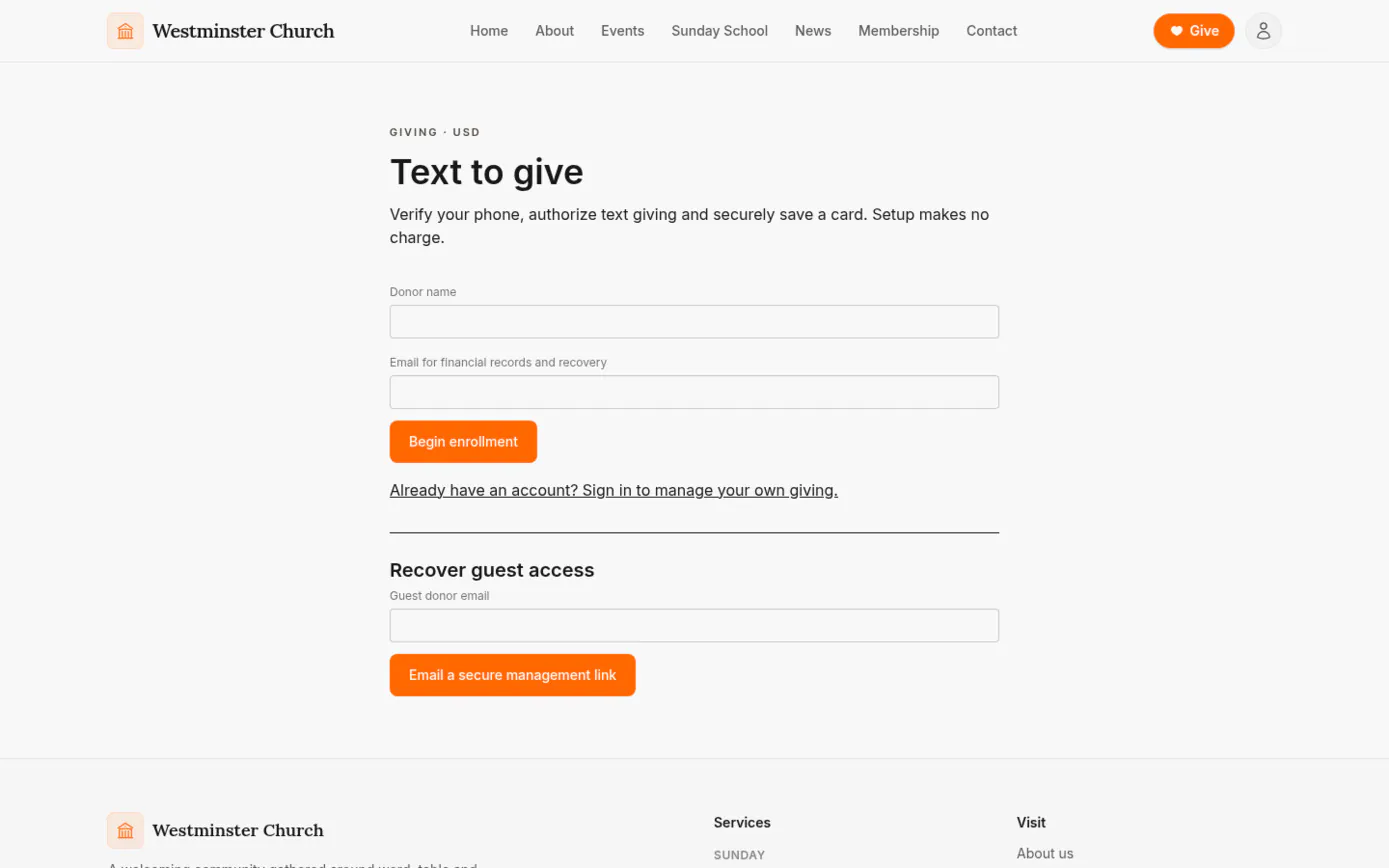
Some people would rather give from their phone than open a website. With text-to-give, a donor sets up once on your church website: they verify their mobile number, agree to text giving and save a card. From then on, texting GIVE 25 to the church's number gives $25 to your general fund.
Each gift is charged to the saved card through your church's own Stripe account and joins the same donation records as every other gift, with the usual email receipt and a text to say it went through. Visitors need no account; members can set it up while signed in and use a card they already saved.
In short
One text per gift
After a one-time setup, GIVE 25 is all it takes. Fund codes send a gift to missions, the building fund or any other fund that takes text gifts.
Never charged twice
A text delivered twice, a slow network or a retry never becomes a second charge. Old texts are never replayed after a pause or a STOP.
Your Stripe and your number
Gifts settle in the church's own Stripe account and texts come from the church's own Twilio number, each billed to you directly.
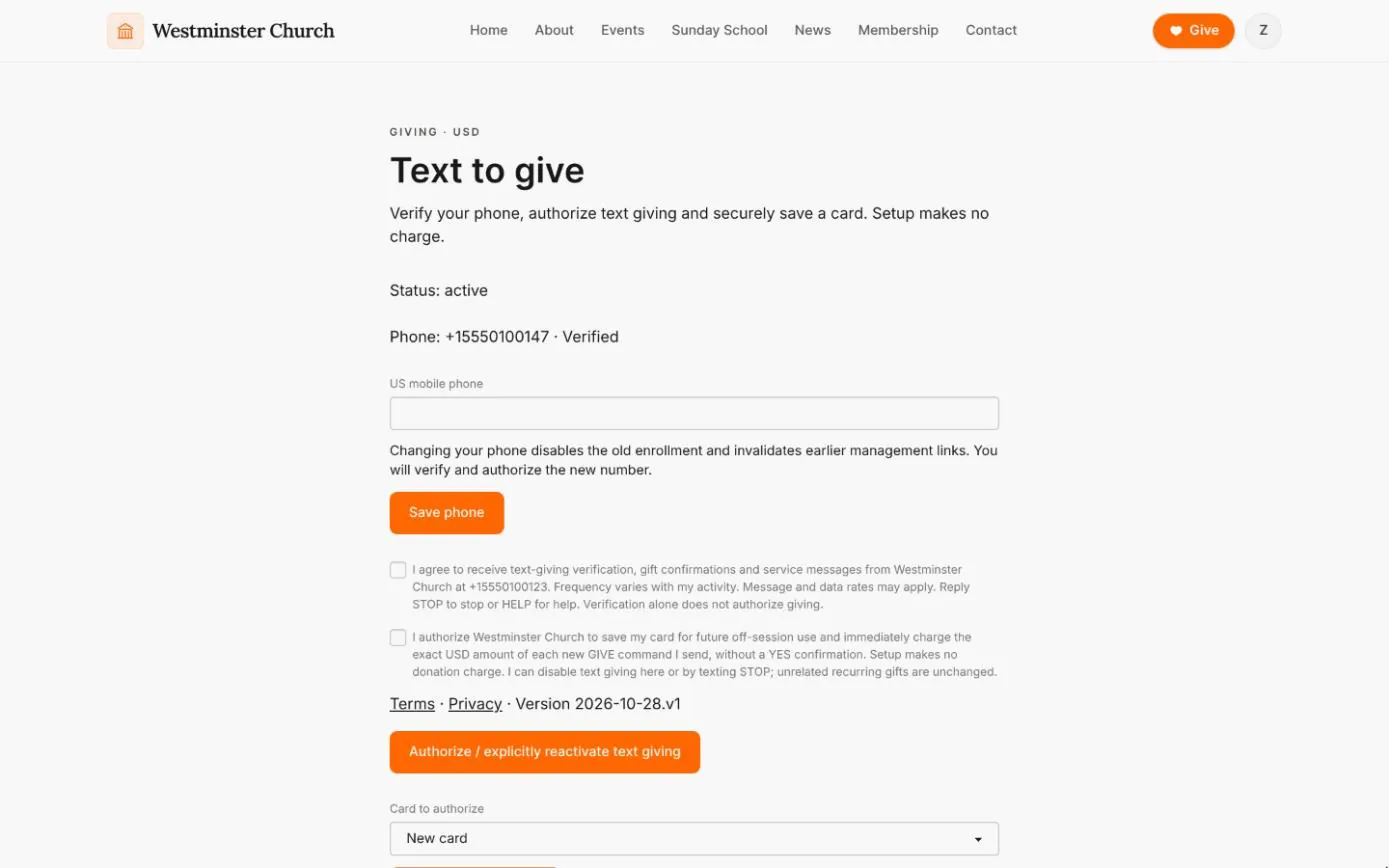
Verify the phone, agree once, save a card
Chimes texts a six-digit code to the donor's US mobile number, and the number is only used once the code is entered. The donor then ticks two separate boxes: one to receive text-giving messages, and one to let the church charge their saved card for each GIVE they send. Both link to the text-giving terms and privacy pages, and Chimes records the version each donor accepted.
The card is saved through Stripe without charging anything. Members signed in to the member app can pick a card they have already saved instead of entering a new one.
- check Codes that expire after ten minutes, with limits on resends and wrong guesses
- check Consent to messages and consent to charges asked for separately
- check Card details held by Stripe; Chimes keeps only the last four digits
From a text message to the giving record
Once set up, giving takes one text. There is no app to install and no link to open for an ordinary gift.
Every gift becomes an ordinary donation in the staff console, so it counts toward fund totals and appears on the donor's giving statement like any other.
-
01
Text GIVE 25
The donor texts the church's number. GIVE MISSIONS 25.50 sends the gift to the fund with that code instead of the default.
-
02
Checked before charging
Chimes confirms the number is enrolled, the fund is open and the gift is within the limits, then charges the saved card.
-
03
Confirmed by text
Once Stripe confirms the payment, a text thanks the donor with the amount, the fund and a reference.
-
04
Bank checks handled
If the bank asks the donor to approve the payment, a link valid for 15 minutes completes the same gift, with no second charge.
-
05
Receipted and recorded
The email receipt follows as for any gift, and the donation counts toward the fund and the donor's statement.
GIVE, FUNDS, HELP and STOP
GIVE 25 goes to the church's default fund, and GIVE MISSIONS 25.50 goes to the fund with that code. FUNDS replies with the codes that are open for gifts, and HELP explains the commands. A mistyped amount or an unknown fund code gets a short reply saying no gift was taken, never a guess.
STOP turns text giving off at once and cancels anything not yet charged. START lets messages through again, but charging only resumes after the donor agrees again on the website. The same page lets a donor change their phone, replace the card or switch text giving off.
- check Exact amounts in dollars and cents, from $1 to $500 a gift
- check Up to $1,000 a day and three gifts in ten minutes per donor
- check Guest donors can email themselves a link to manage their settings
Short codes for the funds people text to
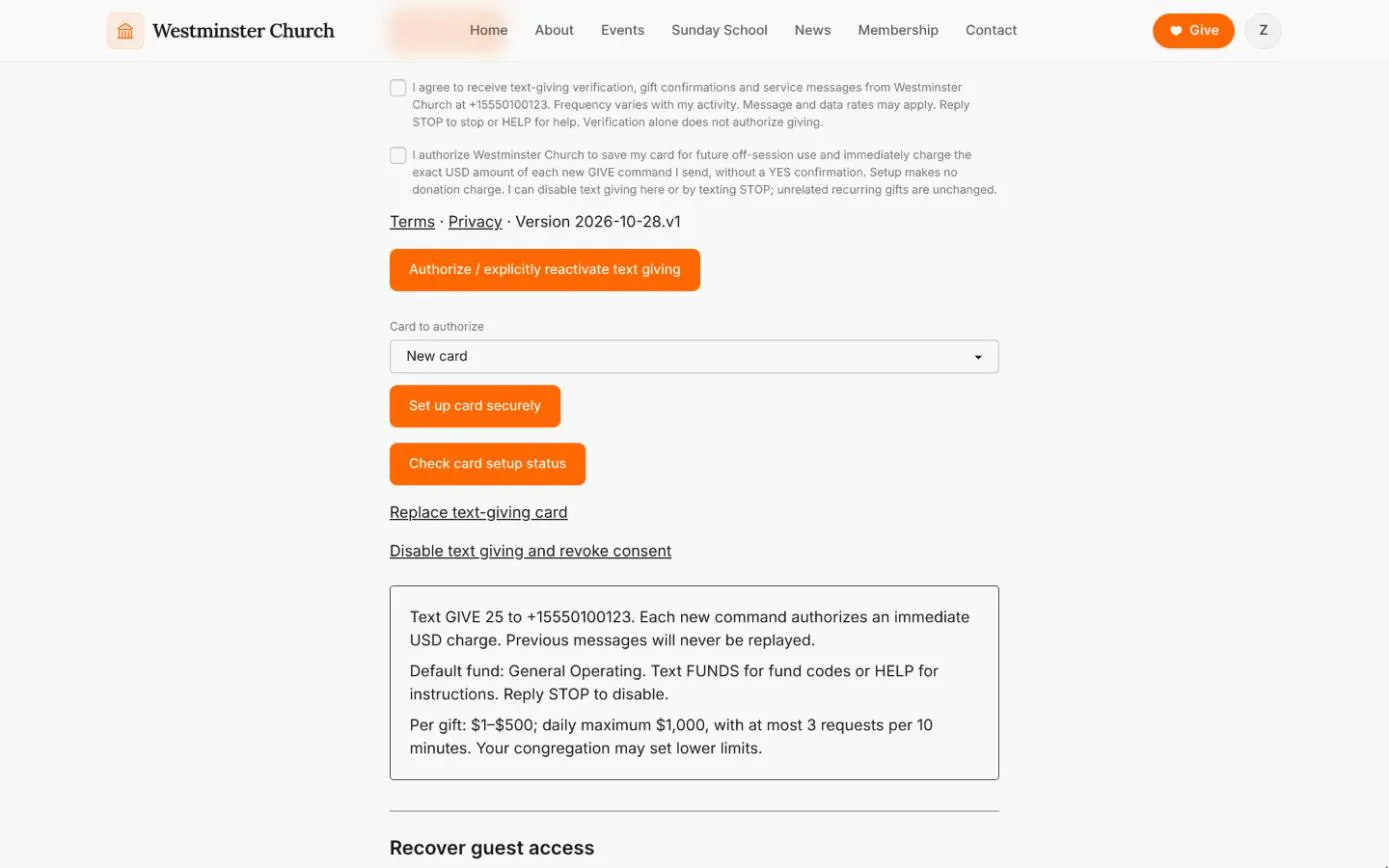
Staff give each fund that takes text gifts a short code, such as MISSIONS or BUILDING, on the fund's edit page, and choose one fund as the default for a plain GIVE 25. Only active funds within their dates accept gifts by text.
A code stays with its fund for good, even after the fund is archived, so an old code can never send money to a different fund. If the default fund is archived, text gifts stop until staff choose another, rather than going somewhere unexpected.
- check Codes of up to 16 letters and numbers
- check One default fund, chosen on purpose
- check Command words such as STOP and HELP refused as codes
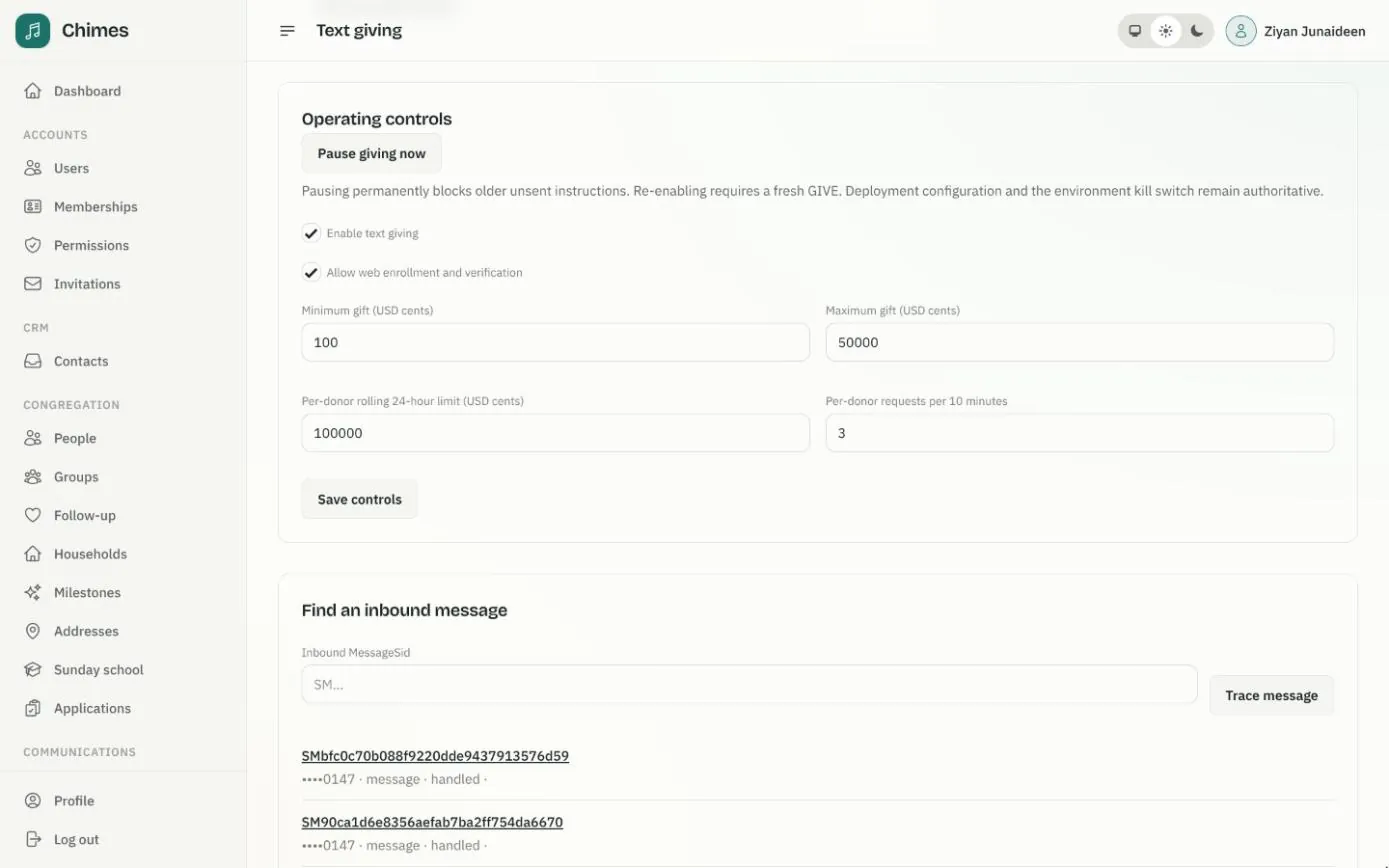
Pause text giving and set your own limits
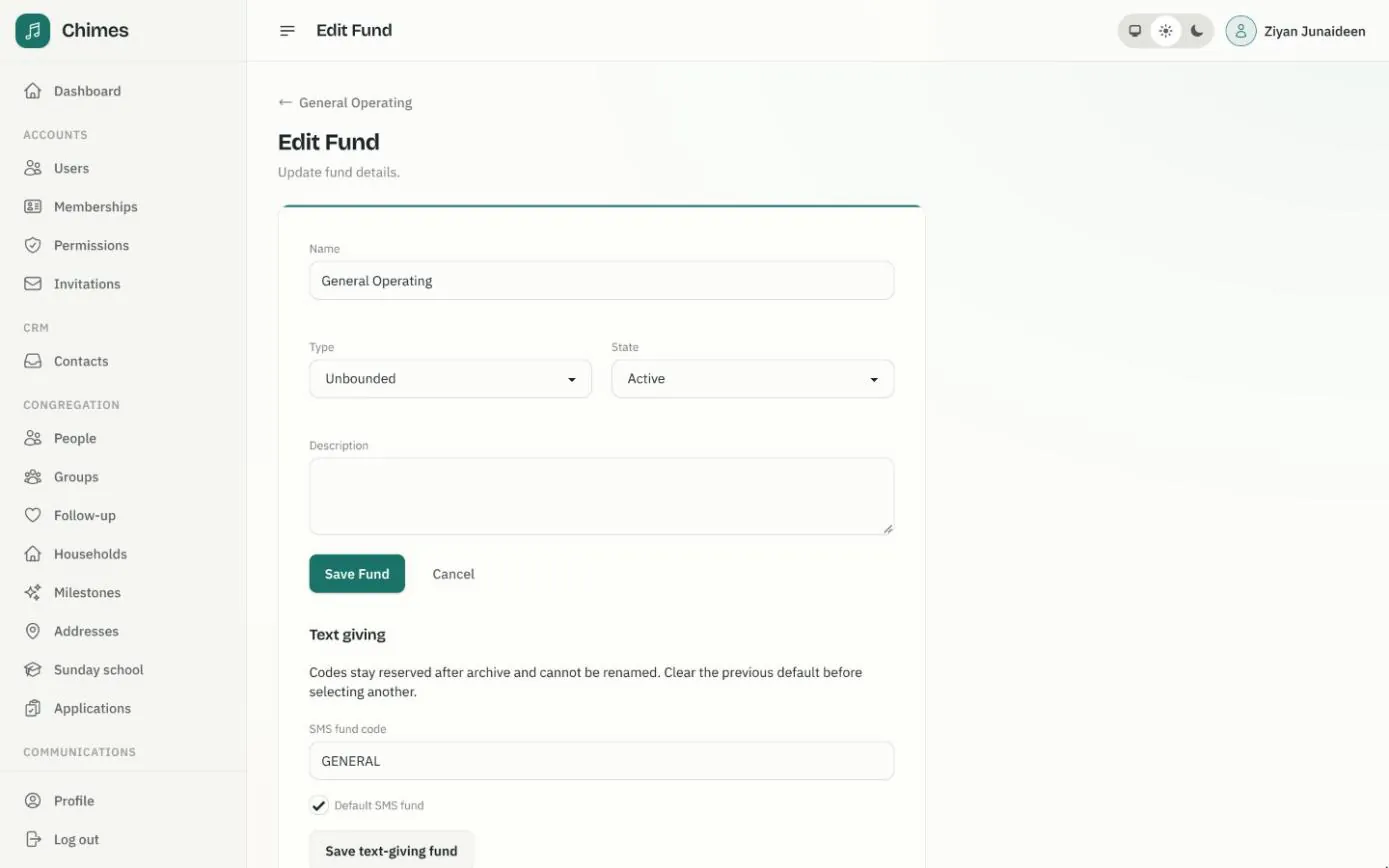
The Text giving page in the staff console shows whether everything is ready, how many donors have opted out, how phone verification is going and what this month's texts have cost in Twilio. Staff can lower the gift limits for your congregation, turn new enrollments off, or pause text giving altogether.
A pause cancels every gift that has not yet been charged, and switching back on never replays old texts: donors simply send a fresh GIVE. Each change is recorded in the audit log.
- check A readiness check of the fund, Stripe and Twilio settings
- check Limits that can be tightened, never raised past the safe ceiling
- check Separate permissions for viewing, acting on a gift and changing settings
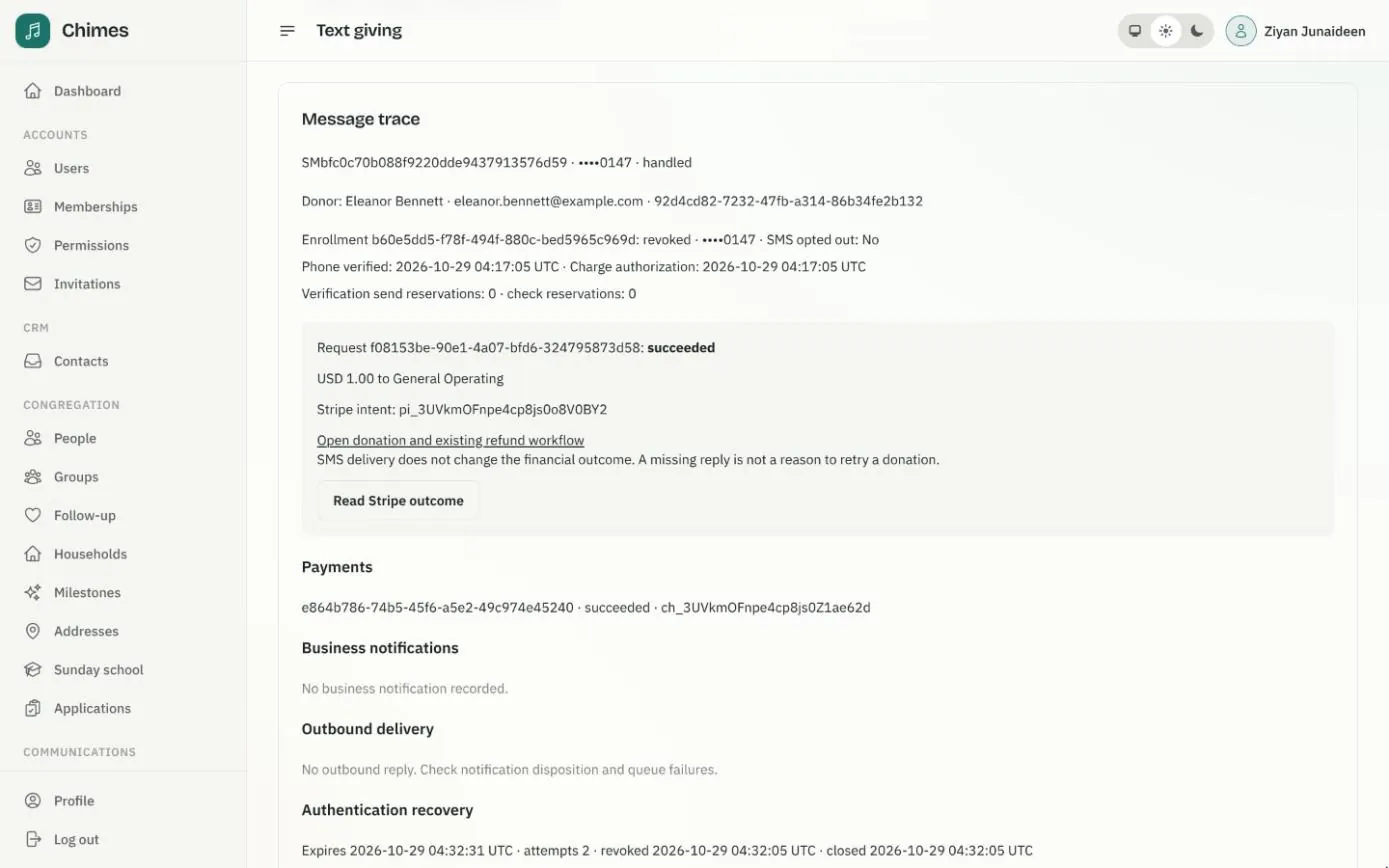
Follow any text through to the payment
When a donor asks whether a gift went through, staff open the text in the staff console and see the whole story: the donor, their enrollment, the gift and fund, the Stripe payment, and whether the reply text was delivered. Phone numbers are shown masked.
A missing reply never means a missing gift. The trace links straight to the donation and the usual refund workflow, and a gift whose outcome is uncertain is checked with Stripe rather than charged again.
- check Every step from the incoming text to the payment, on one page
- check A Stripe check for an uncertain outcome, without a new charge
- check Each lookup recorded in the audit log
Related features
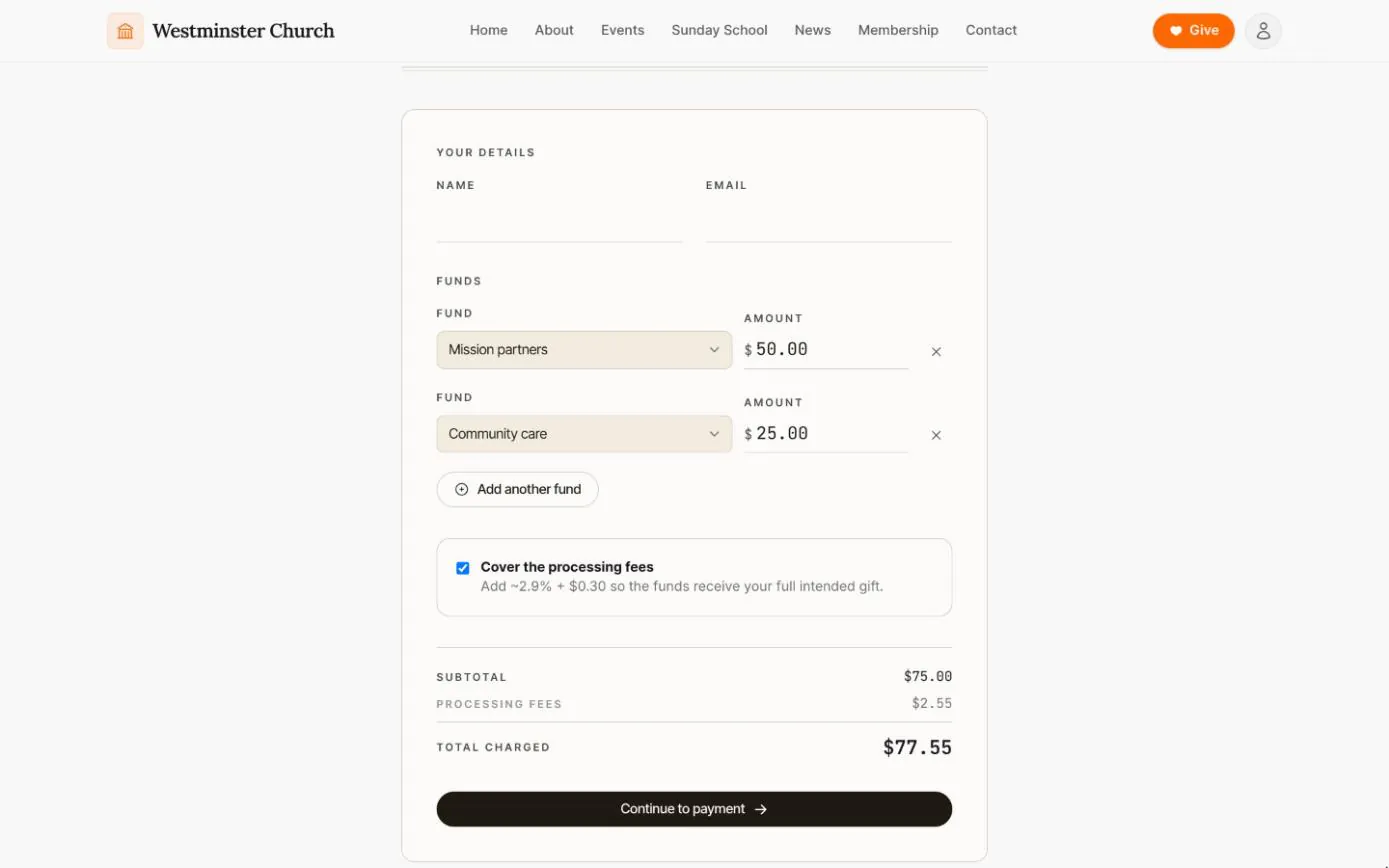
Giving without an account
A public giving page where anyone can split a one-time gift across funds and cover the processing fee, without creating an account.
See the feature arrow_forward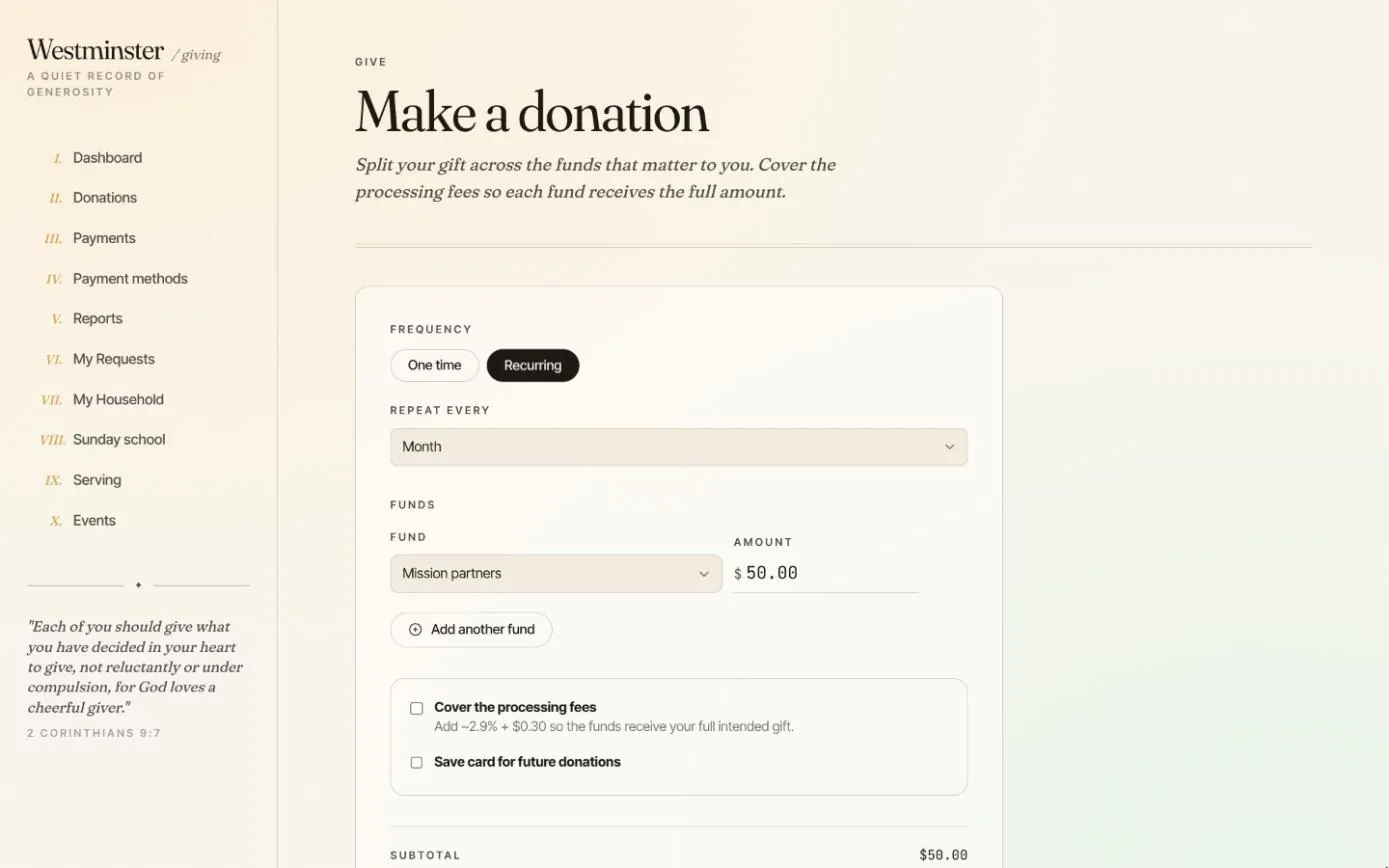
Online giving
One-time and recurring gifts split across funds, saved cards and bank accounts, an optional cover-the-fee and a dashboard of everything given this year.
See the feature arrow_forward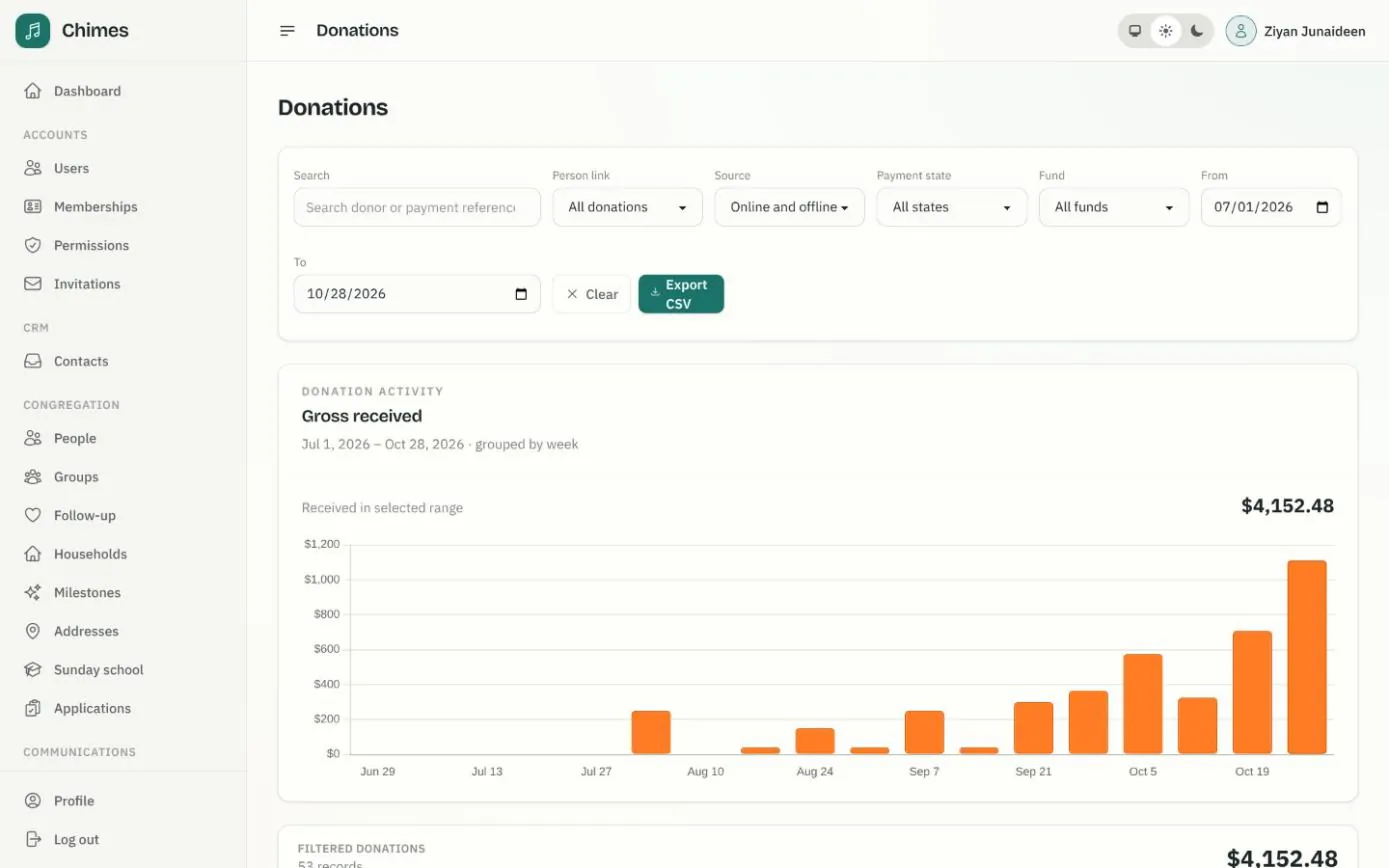
Funds, gifts and offerings
Funds with goals or date ranges, every online and offline gift with its fund split, and keyboard-first batches for counting the Sunday offering.
See the feature arrow_forwardSee Chimes with your own congregation in mind.
Tell me how your church keeps its records today and where you would like Chimes hosted. I will come back with a deployment plan and a straight answer on what it will take.