app.
Giving history and statements
Every gift a member makes is in the member app: what they give online by card or bank account, and the cash and check gifts the office records from the Sunday offering. Each one shows its funds, how it was paid and whether it went through.
When a tax return or a household budget calls for it, members choose a period and download a statement of giving themselves, as a PDF letter on your church's letterhead or a CSV for their own records. Nobody has to email the office and wait.
In short
Offline gifts included
Cash, checks and other in-person gifts the office posts sit beside online gifts, in the history and on the statement.
Their own financial year
Each member can set the day their financial year starts. It begins at the church's default, and the statement ranges follow it.
A letter, not a printout
The PDF carries your letterhead, statement wording and signatory: the same letter the office sends in year-end batches.
A record of every gift, given online or in person
Donations lists every gift with its date, fund and amount, notes when a gift was split across funds, and shows whether it was paid by card, by bank account or given in person. Members can narrow the list to recurring, one-time or paused gifts.
Payments lists each charge on its own, marked succeeded, processing, refunded or disputed, so a member can see exactly what was taken and when.
- check Check gifts show their check number on the payment
- check Gifts made on the website before signing up appear once the office links them to the member
- check A Tax report shortcut from Donations straight to statements

Download a giving statement for any period
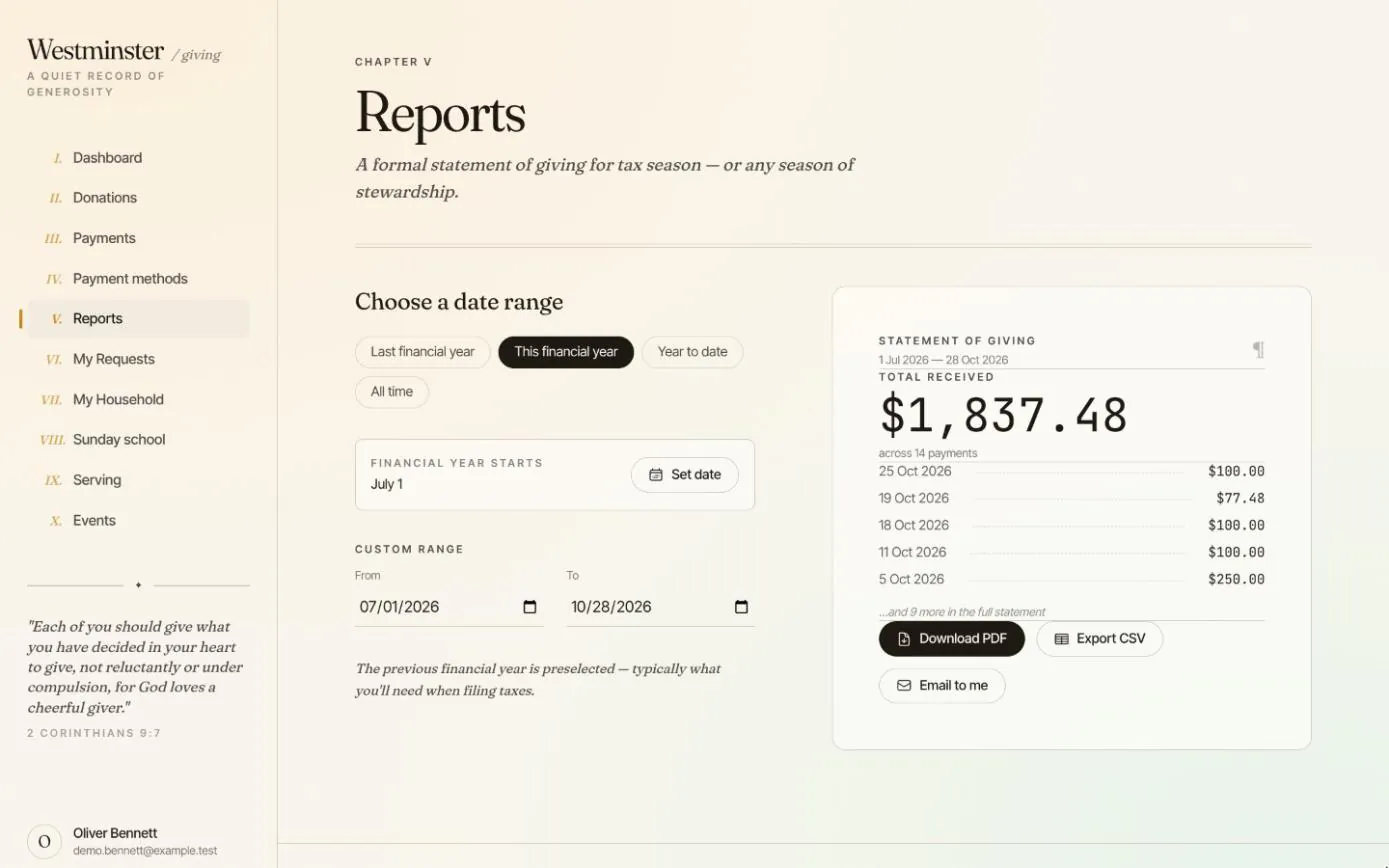
The Reports page builds the statement from the same payments as the giving history, so the total a member sees is the total on the letter.
The letter thanks the donor, gives the total received and lists each payment with its date, reference, method and any refund, followed by your statement note and signatory.
-
01
Choose the period
Last financial year is preselected, since that is usually what a tax return needs. This financial year, year to date, all time or custom dates are one click away.
-
02
Check the total
A preview shows the total received, the number of payments and the latest few, with refunds already taken off.
-
03
Download a PDF or CSV
The statement is prepared in the background and the download starts as soon as it is ready.
-
04
Or have it emailed
Email to me sends the PDF letter and the CSV export as attachments to the member's own address.
Each gift's payments, traceable to the statement
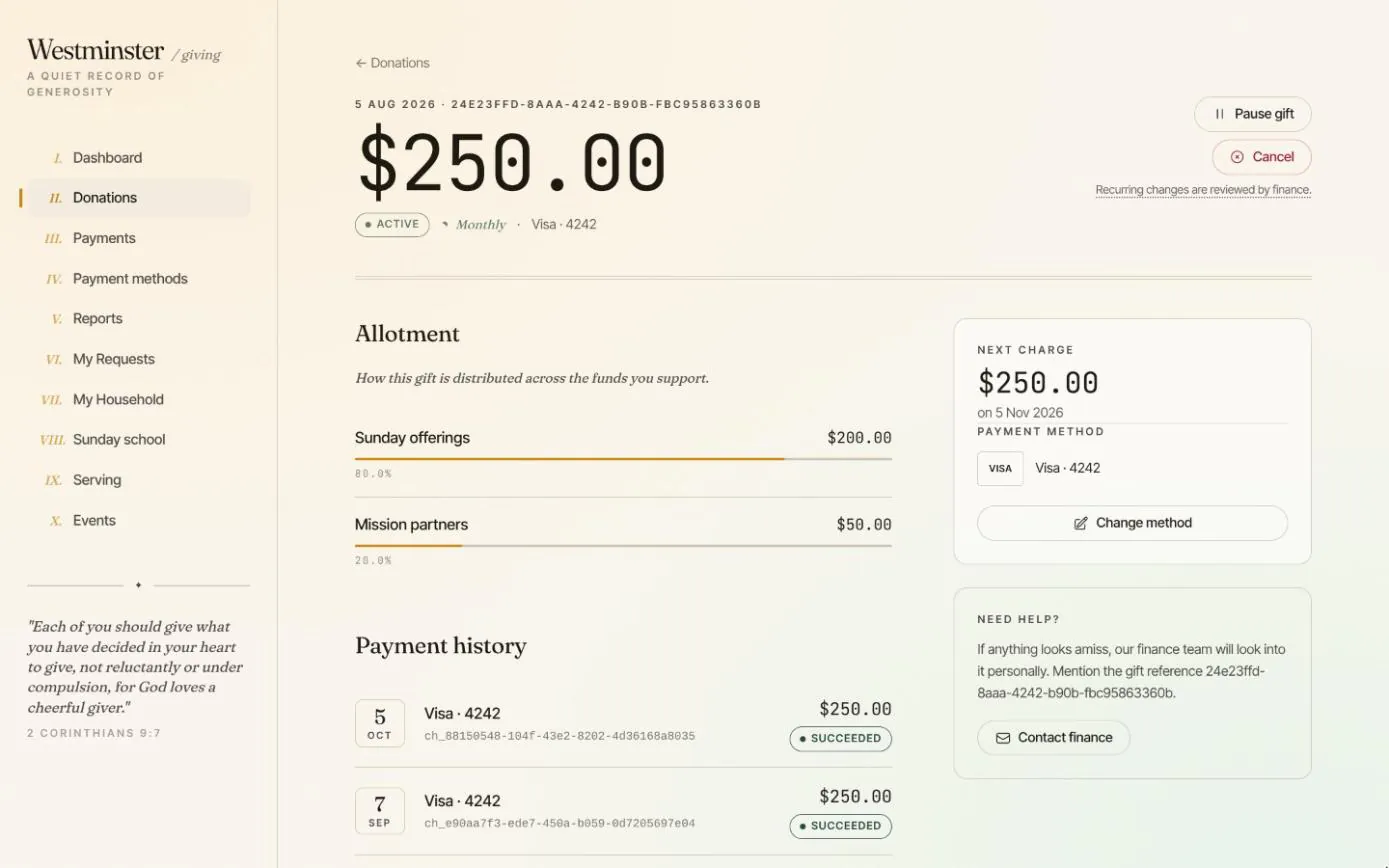
Opening a gift shows every payment it has made, with the date, the card or bank account and the payment's reference. The same reference appears on the statement, so a member can match each line to the gift it came from.
Refunds are recorded against the payment they came from. A partly refunded payment shows what was returned and what the gift now stands at, and the statement counts only what the church kept.
- check Only payments that went through are counted; failed and disputed ones are left off
- check Refunds netted off, with a refunded column on the letter and in the CSV
- check When the office corrects an offline gift, the history updates and a fresh statement picks up the change
Related features
Online giving
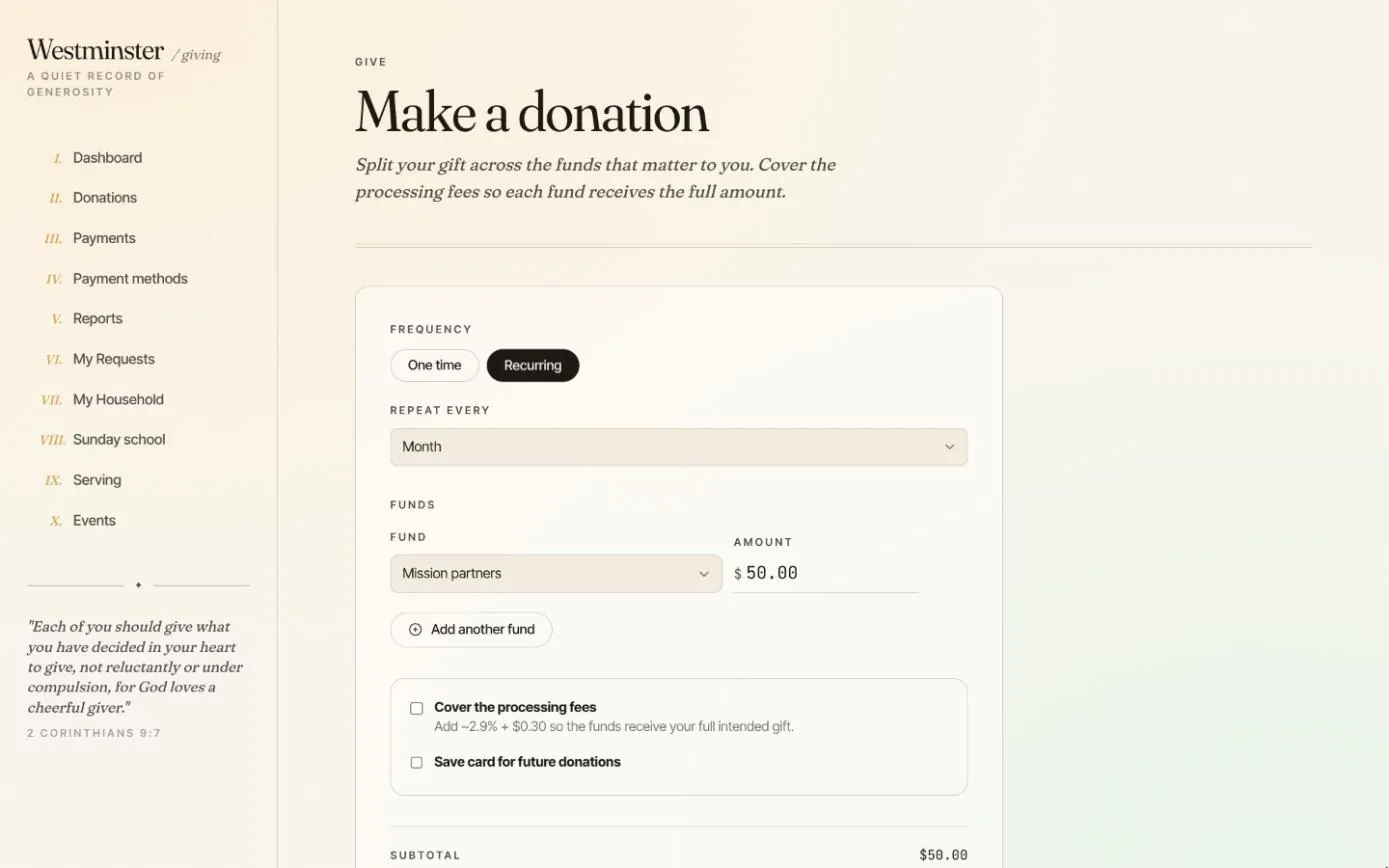
One-time and recurring gifts split across funds, saved cards and bank accounts, an optional cover-the-fee and a dashboard of everything given this year.
See the feature arrow_forward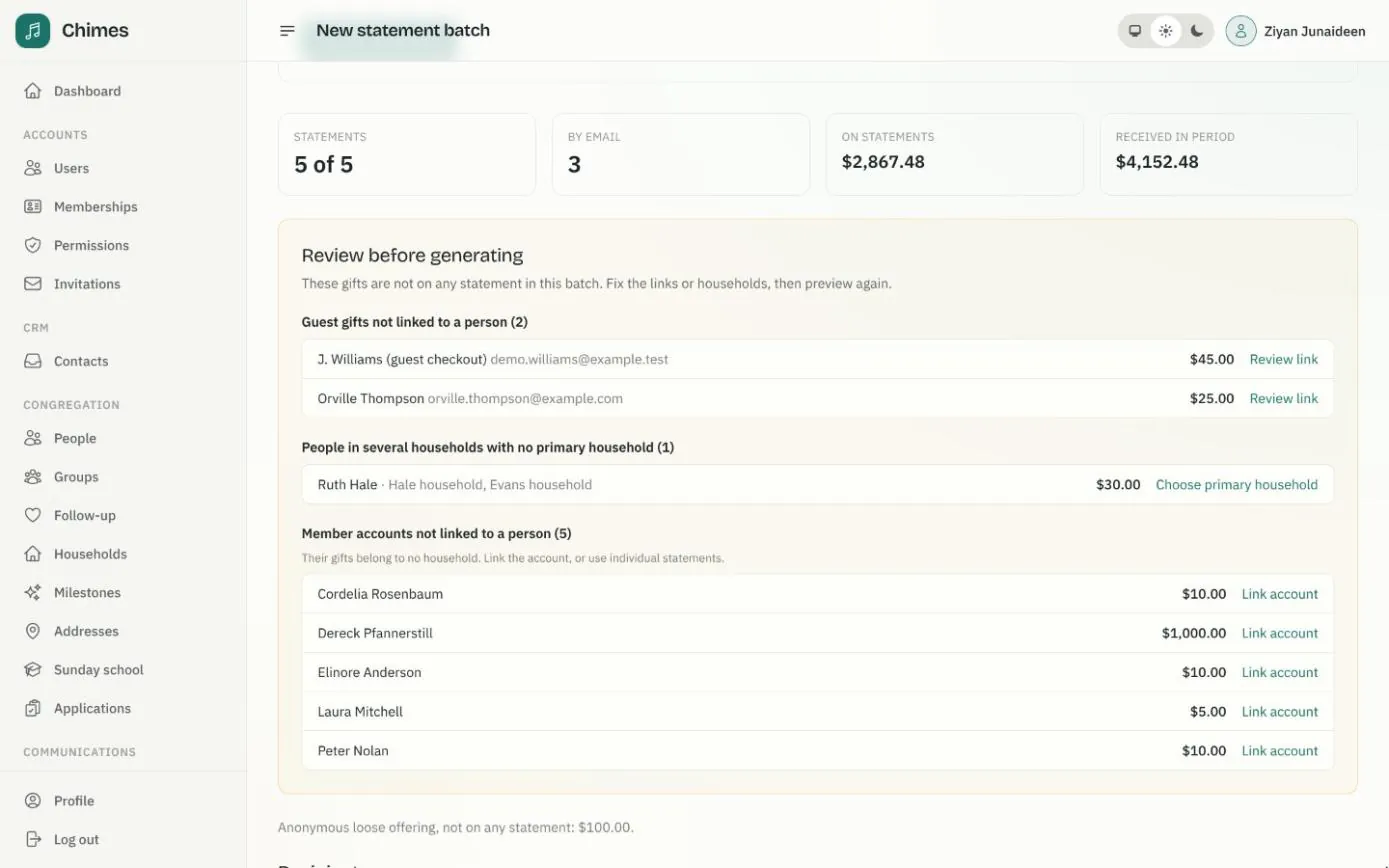
Year-end giving statements
Statement batches for a financial year or any period, with a preview that flags problems first, PDFs by email and a print batch for the rest.
See the feature arrow_forward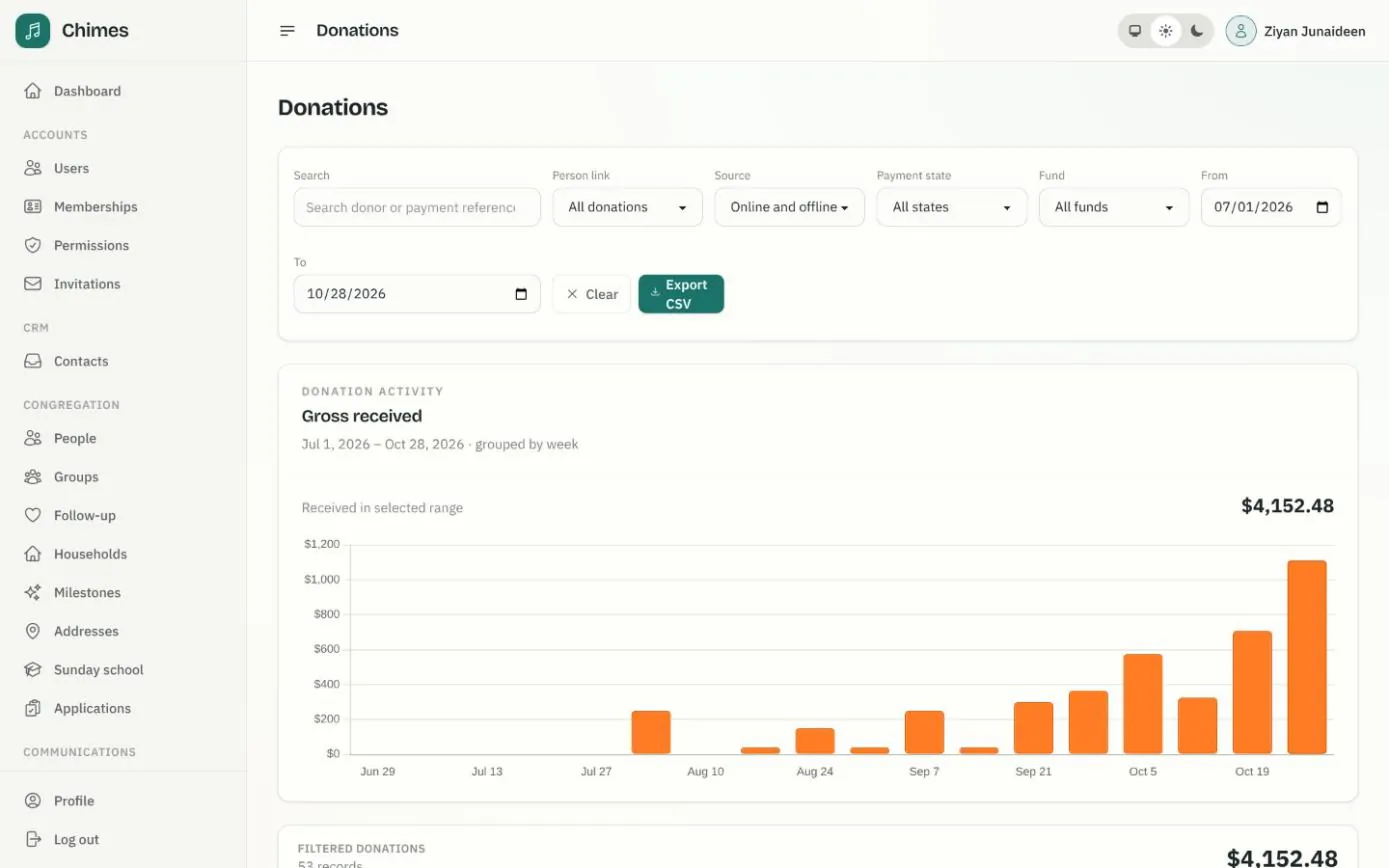
Funds, gifts and offerings
Funds with goals or date ranges, every online and offline gift with its fund split, and keyboard-first batches for counting the Sunday offering.
See the feature arrow_forwardSee Chimes with your own congregation in mind.
Tell me how your church keeps its records today and where you would like Chimes hosted. I will come back with a deployment plan and a straight answer on what it will take.